
To learn more about Specialist Accounts in the Classic Version of ESGI, click here.
Overview:
ESGI Specialist Accounts are designed for educators who assess students across multiple classrooms or grade levels and do not serve as the students’ primary classroom or homeroom teacher. Unlike standard Teacher Accounts—where each student is associated with a single primary teacher—Specialist Accounts allow users to access students through a secondary association.
Each student maintains one Primary Association (their homeroom teacher) and may have multiple Secondary Associations for specialists. When a specialist is linked to a student, they can administer assessments and view results, provided the same tests appear on their ESGI home screen. This structure ensures consistent data access while preserving accurate ownership of primary student records.
There are two types of Specialist Accounts:
- District Specialist Account – Provides access to students across the entire district.
- School Specialist Account – Provides access to students within a single school.
The Specialist Account is intended as a single license for specialists that assess students in multiple classrooms and/or grades and are not classroom/homeroom teachers. Separate accounts are needed for each specialist.
Step-by-step instructions can be found below:
Adding Students to a Specialist Account:
Students that have been assessed in ESGI by another teacher or in a Pre-Assess Account should be added to a group using Student Manager.
Note: Manually adding a student that already exists in Student Manager will create a duplicate.
1. Click on Student Manager on the left side of the screen:
2. Select the student's name(s) that you need to add to your account by clicking the checkbox(es) to the left of their name(s).
3. Then, click the Assign button in the bottom right corner (see Image 1).- If the student is not found but you know the student is in another teacher's class, that teacher might have an account that is not linked to the district. Before you add the student manually, have the teacher contact support@esgisoftware.com to be linked. Manually adding a student that exists in Student Manager will create a duplicate.
- If the student is new, click the + at the top right corner of the screen (see Image 1) and manually add them. They will be added to your group but will not be assigned to a primary teacher.
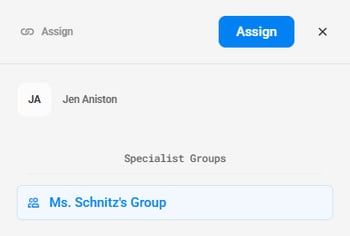
4. Once the Assign Students popout appears, you can assign student(s) to a group by selecting the appropriate group from the list (see Image 2),
5. Then click the blue Assign button. For more information on creating groups, please see: Creating Groups Support Page.
6. Click Home to go back to your Home Screen.
Image 1
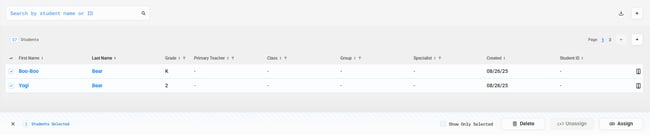
Image 2
Add the Subject Tab and Tests
Our Adding a Subject Tab and Test Support Page provides step-by-step instructions. Detailed information on finding, copying, and sharing tests can be found on our Test Explorer Support Page.
Test Students
On the left side of your Home Screen, your groups will be displayed.
Click the student's name on the left, then click the blue TEST button on the specific test you wish to administer.
Detailed instructions can be found on: Testing Students Support Pages.
Reports
Detailed information on individual reports can be found on: Reports Support Pages.