
To learn about Class and Group management in the Classic Version of ESGI, click here.
Overview
Classes and Groups are used to separate your students to see their data in different ways; groups are useful for creating small groups of students within a class. When the data is collected and reported (in the Class Totals Report and Item Analysis Report), data will be separated by class.
You can add students to Groups from one of your classes and run reports for that group only. By selecting All Classes, you can also run reports for the entire class. Students can be in more than one class and/or group within the same teacher account. For example, a student in a single can belong to a reading group, math group, and table group.
To Create a New Class or Group:
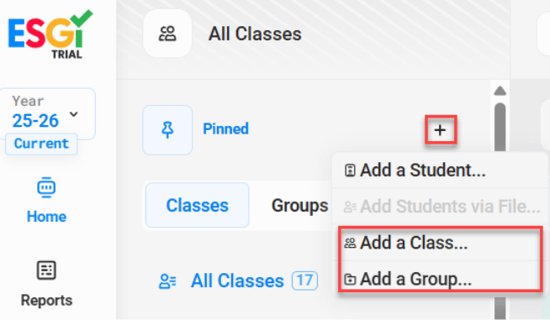
1. From the All Classes dropdown on the homepage, click the “+” button to the right to add a new Class or Group (Image 1).
2. Select “Add a Class or Add a Group” from the dropdown displayed. Type in a name for the Class or Group in the text box under details (Image 1).
3. From the New Class/New Group panel displayed on the right, click the Add Students button, which will open a list of all students available to add to the Class/Group.
4. Select your students and click the Add button in the lower left corner of the modal.
5. Click the Create Class or Create Group button in the upper right corner of the screen.
Image 1
To Edit an existing Class or Group:
1. To edit a Class or Group, click the pencil icon  next to the Class’s or Group’s name within the All Classes dropdown on the homepage. This opens the edit panel on the right.
2. Within this panel, you can make edits to the name of the Class/Group as well as add/remove students. To add students, click the Add Students button; to remove students, click the x icon to the right of the student’s name.
3. Once your edits are complete, click the Save Changes button in the upper right.