
To learn about Student Profiles in the Classic Version of ESGI, click here.
Overview:
ESGI’s Student Profile will serve as a go-to place for storing each individual student’s personal information. Step-by-step instructions for accessing and using the Student Profile functionality can be found below:
Accessing Student Profile/Student Profile View:
1. Click on the  icon to the right of the name of the student whose Student Profile you wish to open (see Image 1).
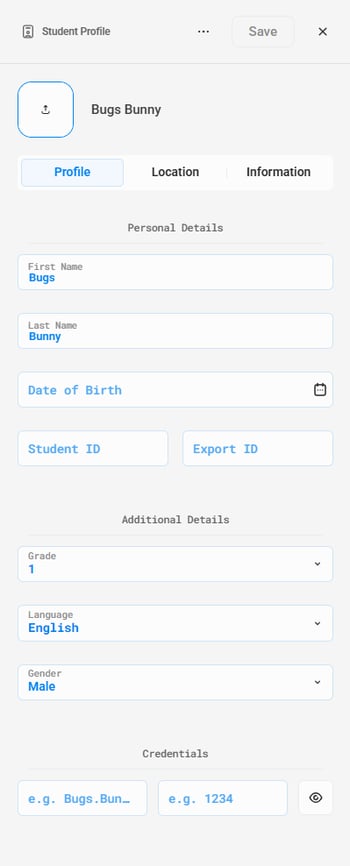
2. This will take you to the Student Profile (see Image 2).
3. There are three main tabs of Student information within the Student Profile: Student Profile, Location, and Additional Information.
Image 1:
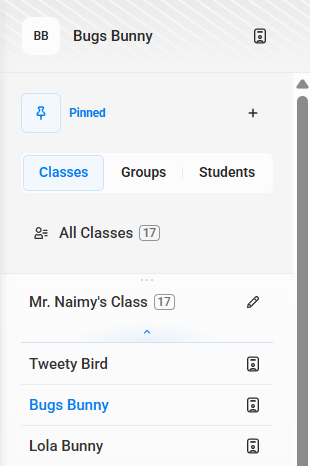
Image 2:
Student Profile:
- Student Name (First/Last)
- Date of Birth
- ID (Student/Export)
- Grade
- Language
- Gender
- Credentials
Location:
-
Shows the Classes/Groups, Teachers, and/or Specialists/Groups that the student is associated with
- Additionally, any students who are being shared with multiple teachers will cause the Location tab to populate with the following potential sharing associations:
- My Classes - The Classes and/ or Groups that this student is associated with in your teacher account.
- Teachers - Any other Teachers whom this student is also being shared to.
- Specialists - Any Specialist Groups whom this student is also being shared to.
Additional Information Tab:
-
Other demographic information, including:
-
Race/Ethnicity
-
Lunch Status
-
Special Programs including Gifted/Talented, SpEd, RTI, ELL/ESL, and 504.
- IEP Accommodations
-
Additional Comments
-
-
Please note that all these fields in the Additional Information tab are optional, and they all can be accessed/uploaded through the Upload Students Tool, which we will address at the bottom of this page, with the exception of IEP Accommodations and Comments.
-
Also, note that the Special Programs field is informational only and does not correlate/communicate with any other fields within the application.
-
At the bottom of the Additional Information tab, we have included a Comments section, which has a character limit of 500. Please note that this section must be filled out within the ESGI application and cannot be uploaded (this is excluded from the Upload Students Tool).
Race and Ethnicity List:
- Asian
- Black or African American
- Hispanic or Latino
- Middle Eastern or North African
- Multiethnic
- Native American or Alaska Native
- Native Hawaiian or Pacific Islander
- White or Caucasian
- Other
Lunch Status List:
- Free
- Reduced
- Other
Special Programs List:
- Gifted/Talented
- SPED
- RTI
- ELL/ESL
- 504
IEP Accommodations
- Add accommodations
- Edit accommodations
- Delete accommodations
- View accommodations’ details
Comments Section:
Allows you to add any comments about a student.
Student Picture:
-
The Student Picture can be edited within the Student Profile, as well, by clicking on the
 button at the top of the Student Profile Screen (see Image 2) and either uploading or dragging and dropping an image file from your device (supported file formats/sizes are displayed in the tooltip).
New Student Icon:
Instead of clicking the pencil icon to the right of each Student’s name, you will now see a student icon in its place.
To edit an individual Student profile, click on the icon to the right of the name of the student whose profile you'd like to edit (see Image 1).
This always displays, except when the View Students setting is disabled.
Upload Students Tool:
For teachers who are not working with districts that use ESGI’s importing feature, if you would like to upload a class roster file rather than adding students individually, you can do so via the Upload Students Tool!
Please follow these step-by-step instructions to learn how to access and use the Upload Students tool:
1. Click on the name of the class which you would like to upload students to.
2. Open the Add a student pop-up by clicking on the + button at the top right of the Student Dropdown (see Image 1).
3. Click the Add Students via File option. This will open the Add Students pop-out menu, on the right side of the screen (see Image 3).
Note: To learn how to Add a Student/ Class/ Group, please visit our Adding Students Support Page.
4. Click on Upload a file to upload your class roster in either CSV or XLS format.
5. Once your class roster file has finished uploading, you will receive the File Upload is Complete pop up. Click Got It to close the pop up.
Note: If there are any errors detected in your uploaded file, a separate popup will appear indicating that there are students who need attention. To view and edit these students, click the View Students button, correct any conflicting records, and click Upload.
6. Your successfully uploaded students will now appear under the class name specified in step 1.
Image 3: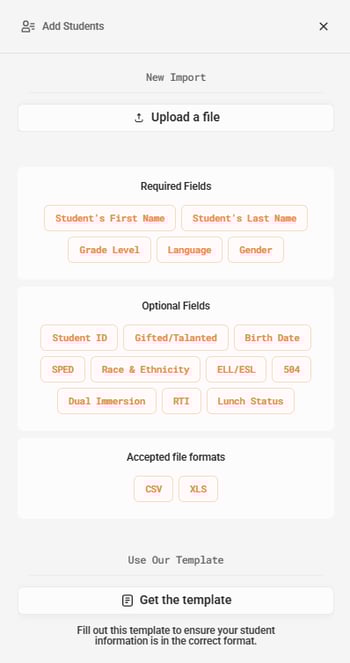
Excel doc:
If you do not have a XLS or CSV file of your class roster, you can also download and use our excel template by clicking on the Get the template button at the bottom of the Add Students menu (see Image 3).
The list of fields on our template is as follows (note that the * next to a field indicates that the field is required):
- Student First Name*
- Student Last Name*
- Grade*: Pre-K (3), Pre-K (4), TK, Kindergarten, Grade One through Grade Twelve
- Gender*: Female, Male, Other
- Language*: English, Spanish, Other
- Student ID: Numbers or Letters (no limit)
- Date of Birth: MM/DD/YYYY
- Race/Ethnicity: Asian, Black (or African American), Multi-ethnic, Native American or Alaskan Native, Native Hawaiian or Pacific Islander, White or Caucasian, Hispanic or Latino, Middle Eastern or Northern African
- Lunch Status: Free, Reduced, Other
- Gifted/Talented: Yes, (leave blank for No)
- SpEd: Yes, (leave blank for No)
- RTI: Yes, (leave blank for No)
- ELL/ESL: Yes, (leave blank for No)
- 504: Yes, (leave blank for No)