Overview
This article introduces the new student sharing feature, designed to support teachers and specialist who work with the same group of students throughout the academic year.
How to Share Students with Multiple Teachers
Please following these steps:
1. Log in to the your School or District Admin Account.
2. Click the Student Manager button in the column on the left-hand navigation column.
3. Select the student (s) you wish to share by checking the box to the left of each student's name. For District Admin Accounts, you can assign students to one school at a time, but you may select multiple students within that school (Image 1).
4. After selecting the students that you want to assign, click the Assign button in the lower-right corner of the screen (Image 1).
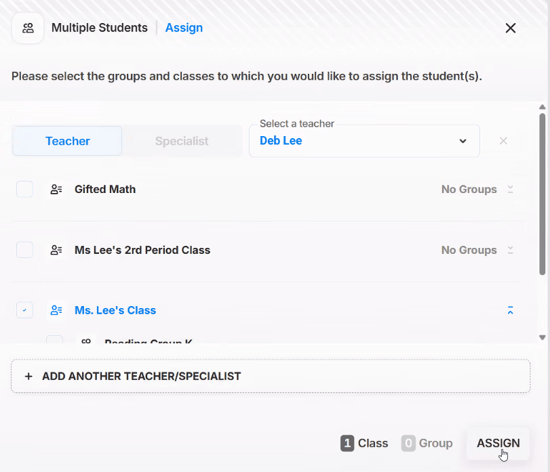
5. Choose the educator type (Teacher or Specialist) to whom you want to assign the students. Then select the name of the the teacher or specialist from the dropdown menu (Image 2).
6. Select the checkbox to the left of the educator's class or group name. The class or group name will turn blue to indicate it has been selected. If you are assigning students to only one educator, skip to Step 8 (Image 2).
7. If you would like to assign the students to addtional educators, click +Add Another Teacher/Specialist and repeat Steps 4 and 5 for each new assignment (Image 2).
8. When you have finished making your selections, click the Assign button in the lower-right of the screen (Image 1).
9. After the assignment is complete, on onscreen message will confirm that the students have been reassigned. You can verify this by reviewing the numbers listed for assigned students in the Teachers or Specialists columns.
Image 1
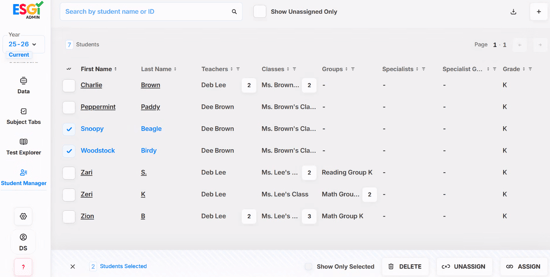
Image 2
Checking Student Sharing Associations
1. Teachers can review their student sharing associations as follows:
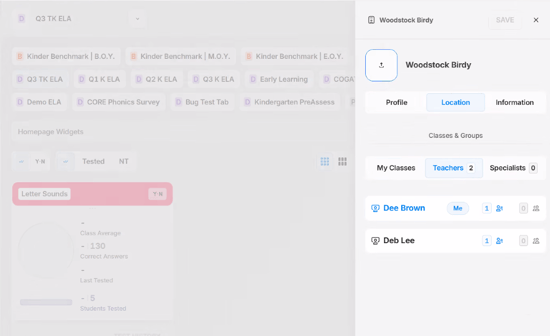
a. Open the student dropdown and click the Student Profile icon to the right of the student's name. When the Student Profile window opens, select the Location tab. The list of shared students will appear there (Image 3).
b. Alternatively, teachers can click click on Student Manager. Once the data loads, click the number listed for the assigned students in the Teachers or Specialists columns.
Image 3