Overview:
The Student Detail Report combines many reports into one! It includes the scores from the Class Totals, the grades from the Grade Report, the Pie Chart, the Test History Line Graph, and the correct and incorrect answers from the Parent Letter. It can be run for a single student or all students in the class.Step-by-step instructions:
1. Select Data from the column located on the left side of the application window.
2. Select either the Classes or Students level of the Data hierarchy.
3. Select your desired class (or student) and click on the blue Run Reports button.
4. Select Student Detail from pop-up that appears.
5. Select the Subject Tab from the Subject Tab: drop-down menu (see Image 1).
6. Select the tests to be included in the report using the check boxes on the left side of each test name (see Image 1).
7. Click Run Report (see Image 1).
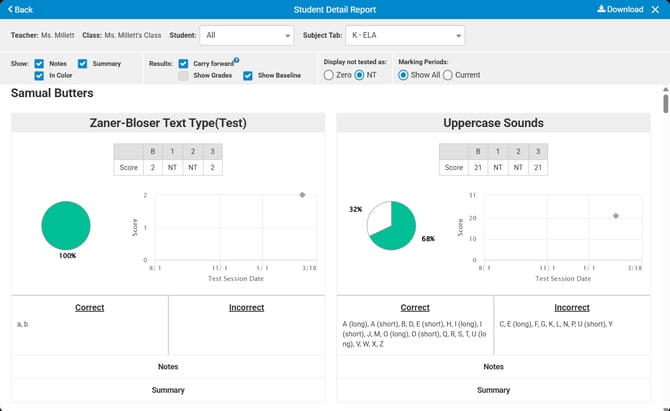
8. An explanation of the different areas on the report is below (see Image 2):
-
The table shows the number correct score and the grade (if the option to Include Grade is selected).
-
The Pie Chart shows the percent correct and percent incorrect for the most recent test session for that specific test.
-
The Test History Line Graph displays a data point for each test session.
-
Hovering over a data point on the line graph shows the date the test was administered and the number correct for that specific test session.
-
Correct and incorrect answers are displayed for the most recent test session.
9. At the top of the Student Detail Report screen (see Image 2), use the drop-down arrows to select another student or Subject Tab. You can also use the check boxes and radio buttons to display the report with these different options:
-
Show Notes can be selected to include question notes on the report. They appear just below the Correct and Incorrect responses.
- Show in Color box can be unchecked for printing in black and white.
- Show Summary can be selected to include summary notes on the report. They appear just below the question notes.
- If Carry Forward is checked, the score will reflect the student's last test session regardless which marking period they were tested in. If the student is not tested during the 2nd marking period, the 1st marking period's score will remain.
- If Carry Forward is not checked, only the scores from specific marking periods are shown.
- Show Grades: The Grades are customized and set up in advance. It includes a customizable Grade Level (A, B, C, etc.) and a customizable Grade Range (90-100% correct = A).
- If Show Baseline is checked, the Baseline Score (B) will show on the report (this is selected by default).
- If this option is not checked, the Baseline Score (B) will not show on the report. This setting will persist each time the report is generated.
- Display not tested as:
- If the NT radio button is selected, an "NT" will display if the student was not tested.
- If the Zero radio button is selected, those same values become 0. - Marking Period:
- If the Current radio button is selected, only scores from the current marking period will be shown.
- If the Show All radio button is selected, scores from all marking periods will be shown.
10. To download the report to PDF for saving or printing, click Download in the upper right corner of the report (see Image 2). Then, select either One PDF File (a single file that contains all students) or ZIP (a zipped folder that contains individual files for each student):
Note: When you open the downloaded Student Detail Report file, the report name, date, subject, teacher, class and student name are at the top of each page, whereas Question Notes and Summary Notes (if selected) appear below the Correct and Incorrect responses.
Image 1
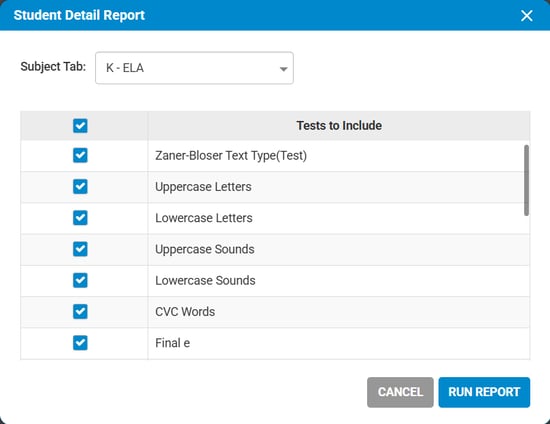
Image 2