
To learn how to remove a test from a Subject Tab in the Classic Version of ESGI, click here.
Overview
With an ESGI Teacher Account, you have the ability to remove tests from your Gray (Personal) Subject Tabs, which are customizable for individual classrooms and personal use. However, you do not have the ability to remove tests from any Purple (District) or Blue (School) Managed Subject Tabs, as these tabs are managed centrally by your District or School Admin.
How to Remove a Test from a Subject Tab:
1. Select the Subject Tab dropdown arrow located at the top of the Teacher Homepage.
Note: You can pin this dropdown to always have it open, or you can enable the Show Subject Tab Favorites Pane to always have any favorited Subject Tabs displayed at the top of your ESGI Teacher Homepage.
2. Select the Subject Tab containing the test you wish to remove.
3. Locate the Test Card for the test you want to remove.
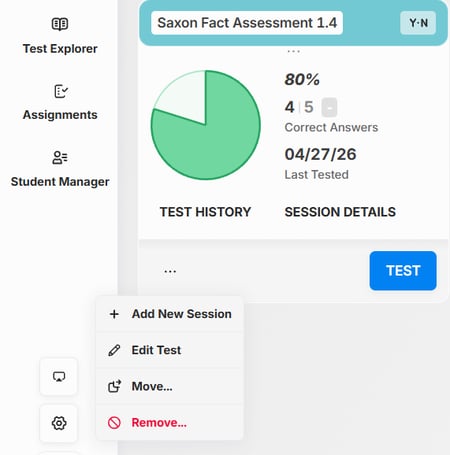
4. Select the More Actions Button represented by the 3 Dots  icon located at the bottom left of the Test Card and choose Remove... (see Image 1).
Image 1
Restoring a Test:
To restore a deleted test back into a Subject Tab, please go to the Test Explorer.
1. Search for the test using the My Tests or District Tests filters.
2. Type in the name of the test in the Search Bar at the top of the screen.
3. If more than one test with the same name displays in your search, look for the note Last used on XX-XX-XX to find the exact test.
4. Select Add Test to add it back to the Subject Tab of your choice!
For more information on adding a test to a Subject Tab, please view our Adding a Test to a Subject Tab Home Screen Support Page.