Overview:
A District Admin can create a universal message for all teachers to use. A logo can also be added.
- District Admins are able to publish a single message.
- Once the message is published, it will get pushed to all purple and blue subject tabs but will not apply to the teachers’ gray subject tabs.
-
To publish in multiple languages, all translations must be added to the single parent message.
-
When published, the students’ language will no longer pull in the translated teacher versions. Only the exact single message will run in the Parent Letter.
To Create/ Modify the Universal Parent Message:
1. Click on the Settings Cog  icon at the bottom of the column located on the left of the home screen to access the Quick Setup.
2. Expand the window using the  arrow to the left of Quick Setup to see all of the options for Admin Settings.
3. Once you're in settings, click on the Customize Parent Letter button located under the Teachers & Students heading.
4. Type into the Message field to modify the Universal Parent Letter (see Image 1). You can also drag and drop optional titles to auto-populate information.
Note: Do not edit the symbols or text within the angle brackets (< and >); they are needed to populate the Parent Letters.
5. Check the Publish to District box to have this message be ran in all Parent Letters (see Image 1). Once the message is published, it will get pushed to all District (purple) or School (blue) Managed Subject Tabs but will not apply to the teachers’ Personal (gray) Subject Tabs.
6. Click Save Changes when done.
To Add a Logo That Will Appear on All Parent Letters:
1. Hover over the School Logo button to see the options to add/ delete a picture, as represented by the upload and trashcan icons (see Image 2).
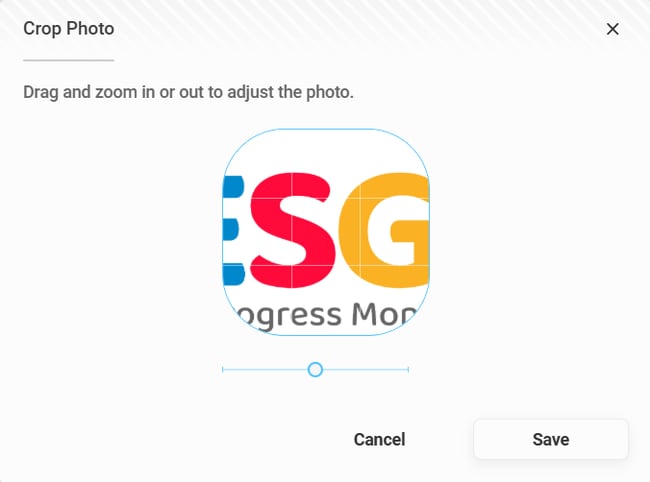
2. Clicking elsewhere on the School logo button opens the Crop Photo pop-up which allows you to position and crop your uploaded photo (see Image 3).
3. When you've finished cropping, click the Save button.
4. Logos will be immediately published upon upload completion.
Note: The logo will push to ALL subject tabs and does not abide by the Publish to District checkbox.
5. Click Save Changes when done.
Image 1
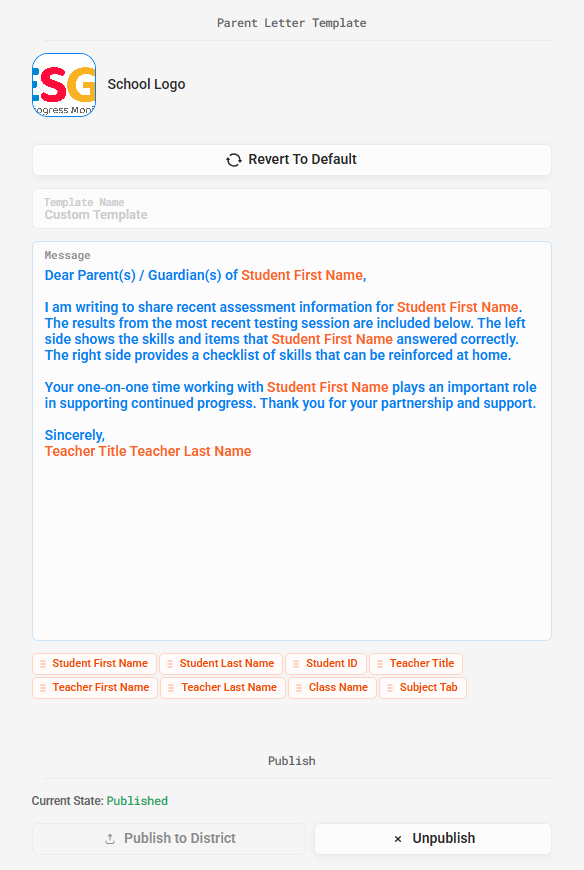
Image 2
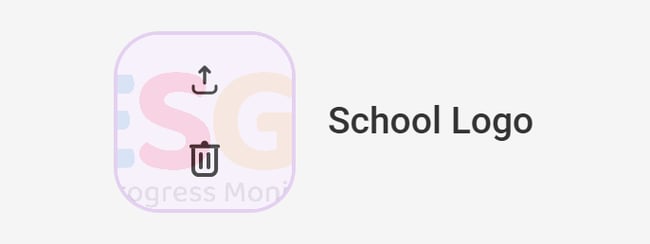
Image 3