Overview
As a District Admin Account holder, you have the ability to delete Benchmark Test Sessions administered by teachers in your district. This is useful for instances such as where a teacher tests the wrong student or makes a mistake during testing while using a Benchmark Test.
Note: To request a free ESGI District Admin Account, please have a district administrator complete the form on our Admin Account Request Support Page. In the form, select Account and Access Support, click Next, then choose Adding an Admin Account.
Step-by-Step Instructions:
1. Select Data from the column on the left side of the application window.
2. Select the Students level of the Data hierarchy.
3. Select the checkbox to the left of the student’s name whose Benchmark Test Session you want to delete.
4. With the student selected, click View Student’s Tests from the panel at the bottom of the screen.
5. Locate the test card for the Benchmark Test containing the session you want to delete. They are located in the orange Subject Tabs.
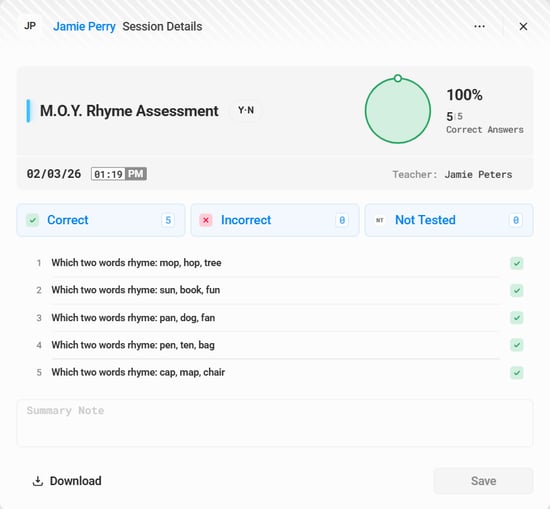
6. Click on the Session Details  button in the upper right corner of the test card. Then, select the date the test was originally administered to open the Session Details modal.
7. Click on the  button located at the top right corner of the Session Details modal (see Image 1) then click Delete a session.
8. Once the session is deleted, the test is immediately reset for the teacher and is available for retesting.