Overview
District Admin accounts have a section called Benchmarks, which allows admins to publish benchmark tests to schools in their district. These tests cover ELA and Math for grade levels: Pre-K, Kindergarten, Grade One and Grade Two. A key difference between benchmark tests and regular ESGI tests is that benchmark tests can only be administered once, during a custom testing window, from within each of three preset timeframes: Beginning of Year (B.O.Y.), Middle of Year (M.O.Y.), and End of Year (E.O.Y.).
Please note:
- When published, benchmark tabs and tests will only be visible for Teacher Accounts in the New Teacher version of ESGI. Specialist accounts and Canada-based ESGI users do not have this feature.
- Tests found within Benchmark Subject Tabs CANNOT be copied or found anywhere else in the application, such as Test Explorer.
In this Support Page Article, you will learn about the following:
Creating Benchmark Tabs:
1. Click Benchmarks from the panel located on the left side of the screen.
2. This will take you to the Benchmark overview page, where you will see an overview page with four sections (see Image 1). From here, click on the blue Set Up Benchmarks button. This will cause a panel to slide out from the right side of the application screen.
3. Click on the grade level(s) that you wish to test. Selected grade levels are indicated by a checkmark in the checkbox next to them (see Image 2).
4. To set your Beginning of Year (B.O.Y.), Middle of Year (M.O.Y.), and End of Year (E.O.Y.) testing window dates, click on the calendar  icon next to the Assessment Period you would like to specify (see Image 2), then select the start and end dates that the teachers will be allowed to run the tests.
Please note:
-
Edits can be made to the testing window as long as the changes do not affect student sessions. If test sessions exist on any date, you will not be able to omit that date within the edited testing window. This prevents omitting student data and enables the accurate displaying of Benchmarks data.
- Each testing window must fall within the preset time frame of each school year, shown in the ‘i’ icon
- B.O.Y: August 1 - December 31
- M.O.Y: January 1 - March 31
- E.O.Y: April 1 - June 30
5. You are also given the option to keep Benchmark Tests published for teachers after the Testing Window has closed, allowing teachers to see their students’ test results throughout the entire school year. To do this, simply click on the Visible for teachers after testing window closes check box (see Image 2).
Please Note: This setting converts benchmark tabs to a view-only mode for teachers after the testing window closes and does not allow for retesting. It can be unselected or selected at any time.
6. Lastly, you will have the option to publish Benchmark Tests to specific schools, or to your entire district. To select specific schools to run Benchmark Tests, click on Select Schools (see Image 2), then click on your desired schools to select them, as indicated by the checkmark to the left of each school name.
7. Once you have made all your desired selections, click on Create Benchmark Tabs at the top of the panel (see Image 2) to publish the Benchmark Tabs and Tests to the selected grades and schools in your district
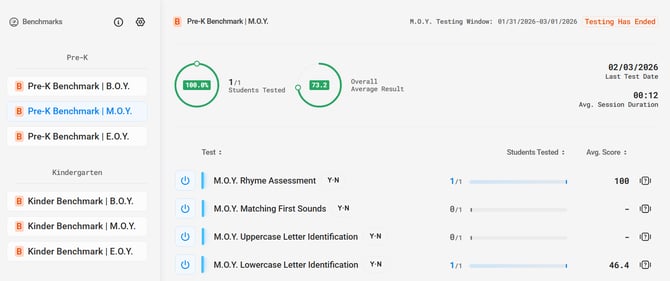
8 After Benchmark Tabs have been successfully published, you will be taken to the main Benchmarks view, which will display moving forward (see Image 3).
Image 1
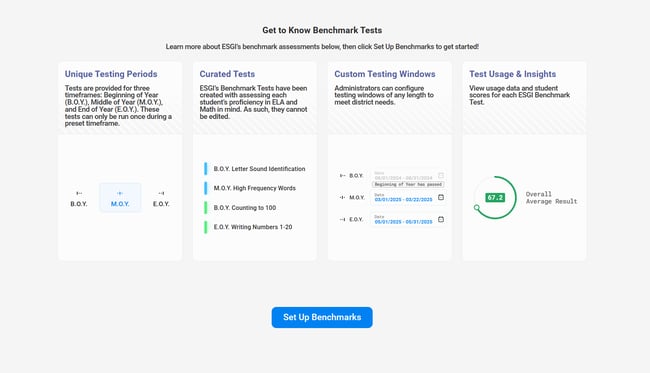
Image 2
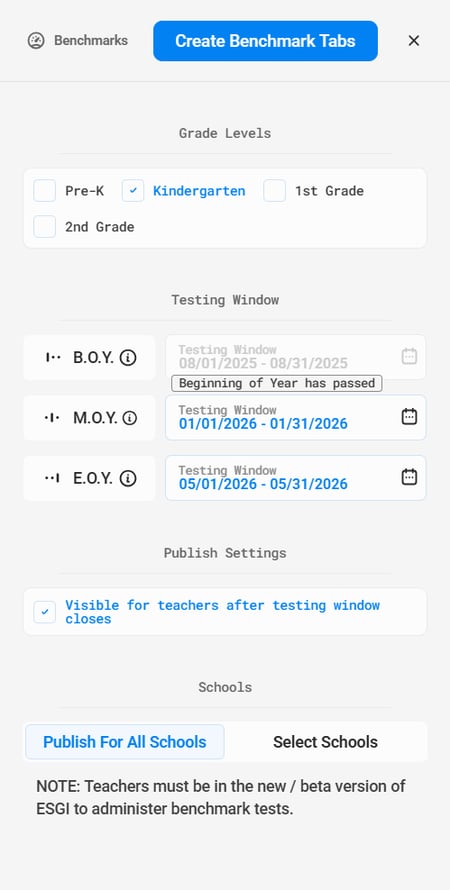
Image 3
District Admin Benchmark View:
After you have configured benchmarks and tests have been administered to students, the Benchmarks View page (see Image 3) will start to populate with the following:
-
All selectable Benchmark Tabs will appear under the Benchmarks Hierarchy on the left side of the screen with separate tabs for each assessment.
-
Each Benchmark Tab will be represented by an orange B.
- Click on a specific Benchmark Tab to select it, as indicated by the blue highlighting.
-
-
A pie chart representing the number of students tested out of the number of students the Benchmark Tabs are assigned to and a pie chart displaying the overall average result for the selected Benchmark Tab will appear at the top of the page.
-
The Test column shows a list of all available tests within this benchmark tab.
-
Click the column to sort it from ascending to descending or from descending to ascending.
-
Clicking on a test opens the Test-Specific Information View (see section below)
-
-
Students tested column along with the progress bar that will update (click column to sort it from ascending to descending or from descending to ascending)
-
Average score column which will show the average percentage across a particular test (click column to sort it from ascending to descending or from descending to ascending)
-
The Last Test Date and Average Test Session duration for this Benchmark Subject Tab
-
The testing window along with the chosen dates
-
Message that shows either the number of days left in a testing window, or the number of days until the next testing window begins
-
Switch Icon, which, when clicked, allows you to turn certain tests on or off (
 Blue = on,
  Gray = off)
 -
Question Mark Icon which, when clicked, opens the test editor allowing you to view all the questions in each test
-
Information Icon which, when clicked, opens the Benchmarks tutorial (see Image 1).
-
Settings Cog Icon which, when clicked re-opens the side panel, allowing you to readjust all the Benchmark Tabs’ settings as seen in the previous section (see Image 2).
-
Test name and test type, along with the State Standard, if applicable.
Test-Specific Information View:
The Test-Specific Information View provides you with additional insights and information about a specific test within your Benchmark Tab.
1. To access the Test-Specific Information View, click on any of the test names listed in the Test column (see Image 3).
2. The Test-Specific Information View will display the following (see Image 4):
-
The name of the specified test appears in bold letters.
-
The Question Mark
 icon appears in the top right corner of the screen, which, when clicked, opens the test preview screen, allowing you to view all the questions of the Benchmark Test.
 -
The X Icon appears in the top right corner (to the right of the Question Mark Icon), which, when clicked, closes Test-Specific Information View and takes you back to the main Benchmarks view.
-
A pie chart representing the number of students tested out of the number of students the test is assigned to and a pie chart displaying the overall average result for the selected test are both displayed below the test name.
-
The Switch Icon (located below the X icon) allows you to click in order to turn certain tests on or off (
Blue = on, Gray = off). -
The Last Test Date and Average Test Session Duration appear on the far right of the page.
-
You can use the page navigation arrows
 located below the Avg. Session Duration to navigate through pages of data if applicable.
 -
The Schools Tab displays columns for all the schools that this test is assigned to, the number of students who have taken this test, and the average test score. All columns can be clicked on to sort from either ascending to descending order, or descending to ascending order
-
The Accessors Tab displays columns for all the accessors giving this test, their role, their school, the number of students tested, and the average test score for the test that they’ve given. All columns can be sorted by ascending to descending order, or descending to ascending order
-
The Students Tab displays columns for all the students who this test is assigned to, their school, who their accessor is, their test date (if tested), and their score (if tested). All columns can be clicked on to sort from either ascending to descending order, or descending to ascending order
- There is a Checkbox option located to the right of the Students Tab to only view Schools/ Accessors/ Students that have not tested.
-
Additionally, if a student has been tested, you can click on the Magnifying Glass
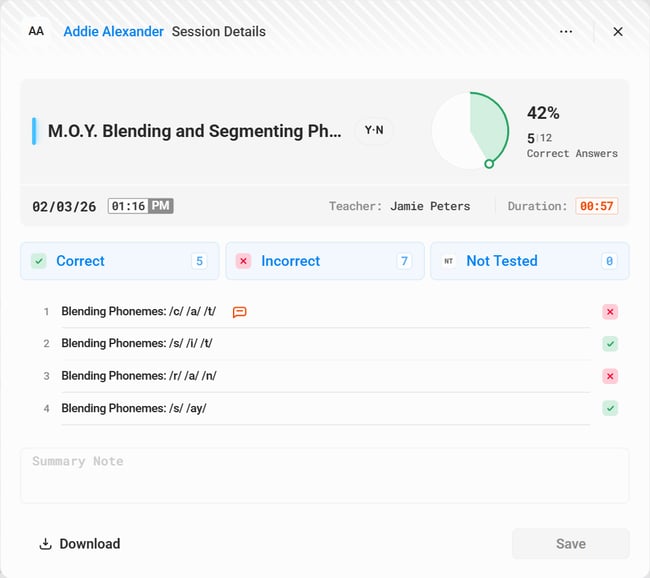
 Icon located to the right of the test score column in the Students Tab to open the Test Session Details Panel. From the Test Session Details Panel, you have the options to filter by correct, incorrect, or not tested questions; view Test Summary Notes and comments; and download the Test Session (see Image 5).
Image 4
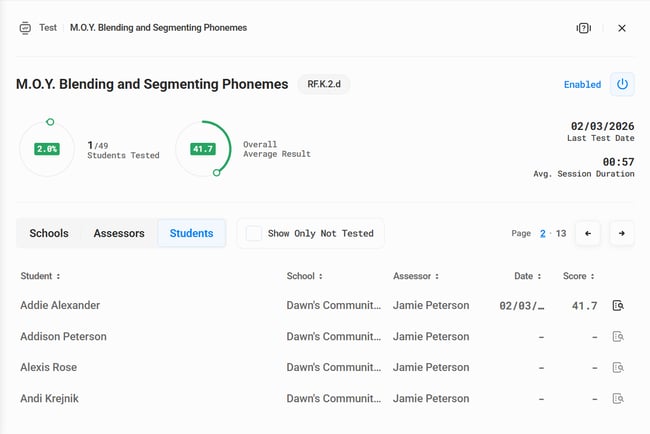
Image 5