
Overview
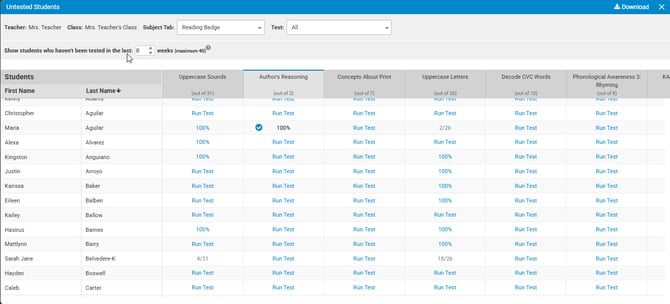
The Untested Students report lists students who have not received a test within a specified number of weeks. From this report, you can initiate a test by selecting the desired student and assessment.
Viewing Untested Students
- Select Untested Students on the right in the Reports Panel
-
A table will display the tests based on the subject tab that was selected. Navigate to a different subject tab or specific test by using the drop-down arrows (see Image 1).
- If a single test is selected, the screen will provide the option to "Show only untested" and "Back to all tests in subject"
-
Select the number of weeks to view students not tested in the selected period (maximum is 40 weeks)
Image 1
Testing a Student
-
Select "Run Test" for the test you want to administer to your student.
-
If the test has never been given, you will only be able to select “All Questions.”
-
If this is a retest, you will be able to select “Incorrect and Not Tested.” You also have the option to Shuffle the test question order.
-
-
Click "Start" and the test will launch.
-
Once you complete the test, the results will be displayed immediately.
-
You can choose to print Flash Cards.
-
When finished you will be returned to the Untested Students report.
Downloading the Untested Students Report
-
Click Download for the following download options:
- Google PDF
- Excel
- Google Sheets