To learn about the Test History Line Graph in the Classic Version of ESGI, click here.
Overview
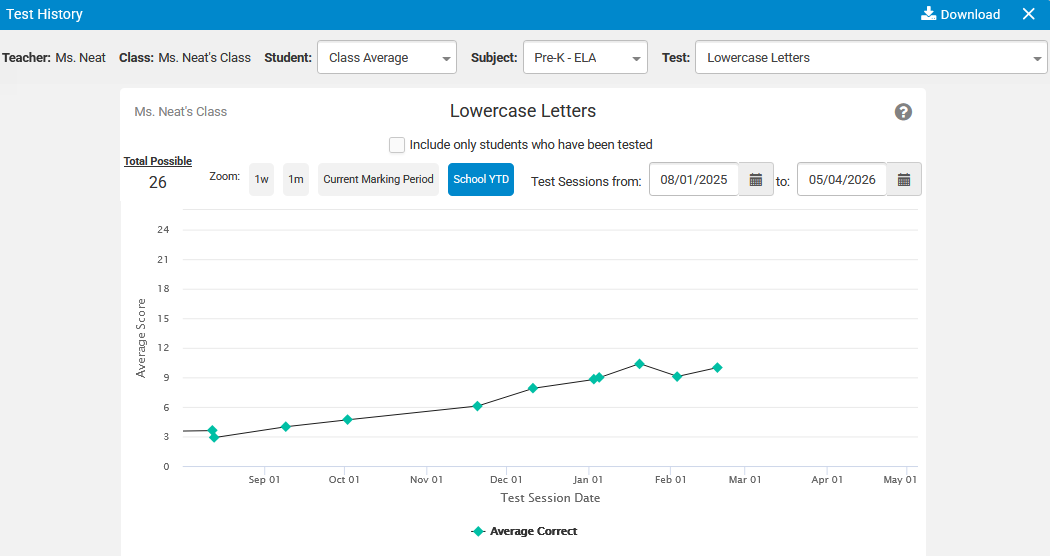
The Test History Line Graph, displays test sessions and score data for an individual student or for an entire class or group. This visual makes it easy to see progress and trends over time, helping educators quickly understand student growth. Teachers and administrators often use the Test History Line Graph during data‑driven conversations, including RTI meetings, to support instructional decisions and monitor progress.
- Each test session is plotted on a graph.
- The first data point on the graph is the baseline score.
- A test session date range can be selected.
- The report can be printed as a PDF or saved as an Excel file.
How to Locate the Test History Graph
There are two ways to access the Test History Graph. First, from the Homepage, select the Class, Group, or Student.
-
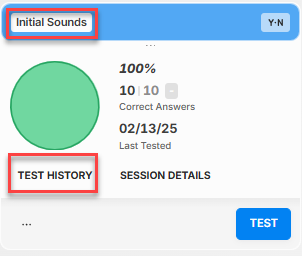
Select the Test Title for the test you want to view on the graph.(Image 1)
-
Scroll to the middle of the Test Details page to view the Test History Graph.
Or
- Select "Test History" on the test card.(Image 1)
- The Test History Graph window will display all times a student was tested.(Image 2)
Image 1
How to interpret the Test History Graph
-
Each test session for a test is plotted on the test history graph. A circle indicates there was a test administered to a student on the date listed below it. (Image 2)
-
The Green/ Purple Mark is the first time tested and is the baseline score (Show Baseline must be selected).
-
A Black square indicates the student was retested on all questions.
-
A Red circle indicates they were tested on Incorrect Only.
-
2. Hover over each data point to see test session details:
-
-
Date/time test was given.
-
Number correct and percent correct.
-
View Data for the Entire Class
-
The data points will show the Average Correct for that test for the class. Note: If you want to include students that were not tested you must select the box “Include only students who have not been tested”.
-
To remove students that were not tested from the class average, deselect "Include only students who have been tested":
-
Preview only Test History by changing Marking Period or Start Date/ End Date.
Edit the Date Range for the Test History Line Graph
-
Select Test Title Name next to the Avg. Correct to View the Test History Line Graph.
-
Click on any of the buttons at the top ("1w" for current week, "1m" for current month, Current Marking Period or School YTD). If "Current Marking Period" is selected, the date range will be based on the specific marking period dates for your school or district. When the date range is increased, the graph will zoom out. When the date range is shortened, the graph will zoom in.
Save and Print the Test History Line Graph
- Click "Download" then select PDF or Excel to save the report to your computer for reference and printing.
- The PDF download of the Test History Line Graph will show a printout of every test session taken by that student as well as the date the test was administered.