To learn about the Student Screen in the Classic Version of ESGI, click here.
Overview
For those times when a teacher does not want the student to see his or her screen, a "student screen" may be used. This feature requires two separate devices in the classroom. It can also be used remotely with video conferencing software such as Zoom and Google Meet. Please be sure to use the recommended browsers on these devices to ensure trouble-free testing.
Note: The Student Screen feature cannot be used by multiple teachers logging into the same account (such as a Pre-Assess Account), even if they are testing different students.
Step-by-Step Instructions
1. On the device that will be used by the student, go to:
-
For US users: www.esgiss.com
-
For Canadian users: https://app.ca.esgisoftware.com/student-screen
2. The "ESGI's Student Screen" will appear (see Image 1)
3. On the device that will be used by the teacher, go to https://app.esgisoftware.com/login and log in with the teacher's username and password.
4. Click on the Student Screen  icon located at the bottom left of the home screen.
5. Click the Get a code button from the pop out panel that appears on the right side of the screen (see Image 2). A unique four-digit code will appear.
6. Copy the four-digit code and paste it in the enter session code field on the student's device (see Image 1). You will have five minutes to do this but can easily click to get another code by following steps 4 and 5 above if time runs out.
7. Click on the blue JOIN SESSION button (see Image 1) and give the student the device.
8. On the teacher's device, click on the student's name in the class list, then administer a test using the desired Subject Tab and Test Card.
9. The student will see only the test question and will not see whether the answer was correct or incorrect.
10. The student will not see any test notes added during testing.
11. When the test is finished, the student will see the pie chart with the Test Session Results.
12. If testing in person, another student can continue with the same code, however, when testing remotely, a new code will be needed for each student who will be.
Image 1
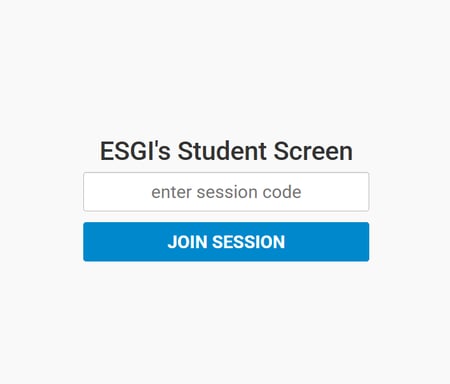
Image 2
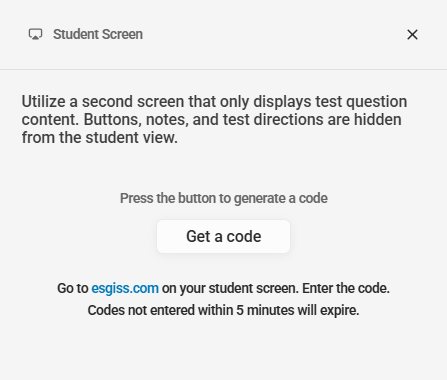
Image 3