Overview:
The Admin Student Progress Report is similar to a report card. It lists all the test scores, percentages, and/or grades (if Grade Scales are configured) for one student. The report can be run for all tests on a single Subject Tab, or for all tests on all Subject Tabs.
How to Run the Report
1. Select Data from the column located on the left side of the application window.
2. Select either the Classes or Students from the Data hierarchy list to the left.
3. Select your desired class (or student) and click on the blue Run Reports button located at the bottom right of the screen.
Please note: You can only select one student or class at a time to run reports. If you select multiple options, the run reports button will be grayed out.
4. Select Student Progress from the pop-up that appears.
5. Using the Subject Tab: drop-down menu, select the desired Subject Tab or select All to report on every Subject Tab (see Image 1).
6. Using the check boxes to the left of each test, check the tests that you want to include in the report (see Image 1).
Note: You can view and select additional tests by using the scroll bar on the right side.
7. Click the blue RUN REPORT button (see Image 1).
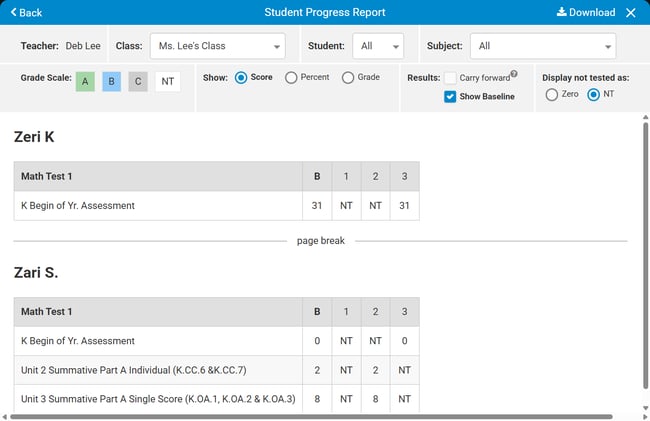
8. Display options are listed at the top of the report (see Image 2).
- The drop-down menus allow you to select a different:
- Class (if applicable)
- Student
- Subject Tab.
- Show - Allows you to toggle the report to be appear in color as well as view the results on the report as either:
- Score
- Percent
- Grade
- Carry Forward - If checked, the score will reflect the student's last test session regardless of which marking period they were tested in.
Note: If the student is not tested during the 2nd marking period, the 1st marking period's score will remain.- If Carry Forward is not checked, only the scores from specific marking periods are shown.
- Show Baseline - if checked, the Baseline Score (B) will show on the report (this is selected by default).
- If this option is not checked, the Baseline Score (B) will not show on the report. This setting will persist each time the report is generated.
- Show in Color - Box can be unchecked for printing in black and white.
- Display not tested as - If the NT radio button is selected, an "NT" will display if the student was not tested.
- If the Zero radio button is selected, those same values become 0.
9.To download to a PDF to your computer or Google Drive, click Download in the upper right corner of the report (see Image 2), then select the appropriate option. Note: A zipped folder contains individual files for each student.
Note: When downloading a large amount of data to your computer, a pop up will appear letting you know the file is generating and will continue to run in the background. Click "Got It" to continue using your account. When the zip file is ready, a notification will appear in the lower left corner. Click on the notification to view and print the file.
10. Once the report is downloaded, the report name, date, and student name are at the top of each page (see Image 2).
Image 1
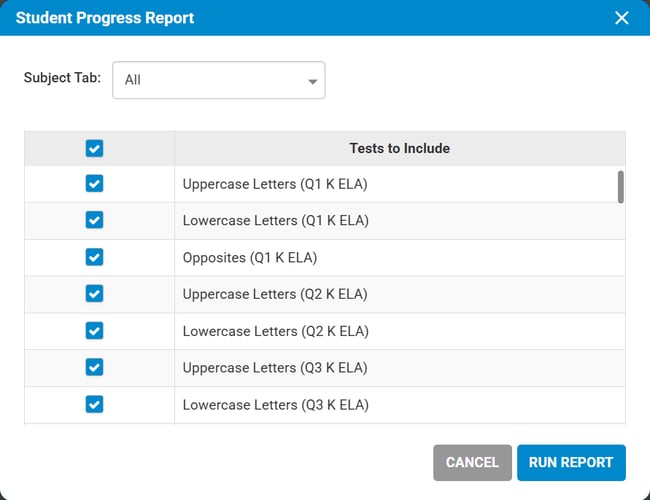
Image 2