Overview:
The Student Accommodations feature in ESGI allows teachers and specialists to add accommodations for students on an individual basis which align to their IEP goals. Accommodations can be added for any student to which the teacher is assigned; this is done via the Information tab in the student’s profile.
Adding Student Accommodations:
(See Image 1 for adding, editing, and deleting accommodations in the Student's Profile).
1. Open the student’s profile by clicking the profile icon  for the corresponding student from the Students Panel of the homepage or the profile column of the Student Manager page.
2. Select the Information tab within the Student Profile.
3. Click the Add Accommodation button located below the IEP Accommodations section header.
4. Select or add a category for the accommodation.
- Four pre-populated categories are available for easy selection: Presentation, Response, Setting, & Timing and Scheduling.
- If you do not wish to use any of these categories, you can create a new category simply by adding the text in the box.
- At least one category is required.
5. Name your accommodation by entering it in the Name box.
-
Name is a required field.
6. Enter a description for the accommodation.
-
Descriptions can be taken directly from IEPs if desired by simply copying and pasting into the Description box.
- This field is optional.
7. Click the Create button inthe upper right corner.
Editing Student Accommodations:
1. Open the student’s profile by clicking the profile icon  for the corresponding student from the Student List on the homepage or from the profile column of the Student Manager page.
2. Select the Information tab within the Student Profile.
3. Find the accommodation to which you would like to make changes.
4. Click the edit icon  for that accommodation.
5. Make edits to any fields you wish.
6. Click the Save button in the upper right corner.
Deleting Student Accommodations:
1. Open the student’s profile by clicking the profile icon for the corresponding student from the Students panel on the homepage or the profile column of the Student Manager page.
2. Select the Information tab within the Student Profile.
3. Find the accommodation which you would like to delete.
4.Click the delete icon  for that accommodation.
5. Confirm that you want to delete the accommodation by clicking the Delete button within the popup modal. This action cannot be undone.
Administering a Test to a Student with Accommodations:
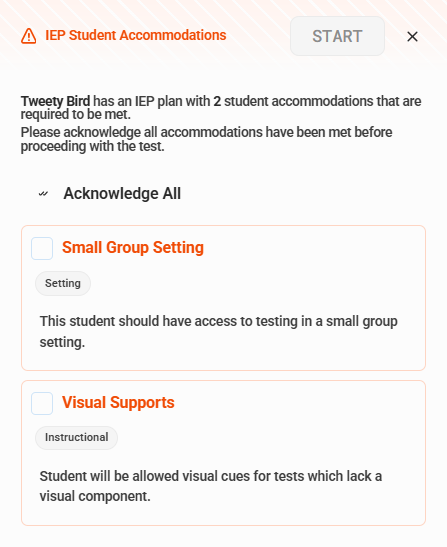
When accommodations are added for a student, the teacher is required to acknowledge that the accommodation(s) have been met before proceeding with testing. This warning is displayed in an additional modal titled IEP Student Accommodations (see Image 2).
To administer a test to a student with accommodations:
1. Select the student and tab on the homepage, as usual.
2. Click the Test button on the test card.
3. Acknowledge that accommodations have been met by either clicking the Acknowledge All option or by clicking each accommodation’s checkbox individually.
4. Once all accommodations are acknowledged as being met, click the Start button to proceed with testing as usual.
5. All accommodations must be acknowledged before proceeding with the test.
Image 1
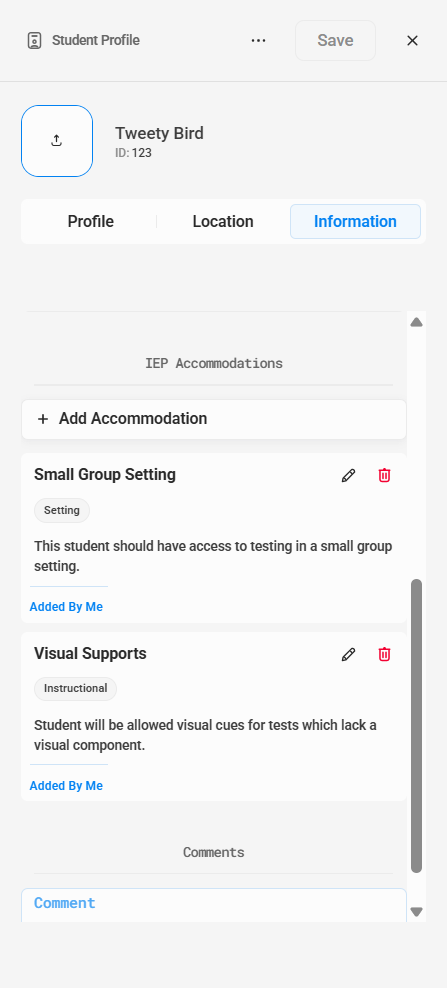
Image 2