Overview:
The School Students report is available in a School or District Admin Account. This report is exactly like the Class Totals report but includes all students in the school. The teacher, class, grade and student name are listed. If teachers are using more than one set of marking periods, the track is also listed. This is best used with Managed Subject Tabs.
Step-by-Step Instructions:
1. From your Admin Dashboard, select Data from the left side of the application window. This will take you to the Data Page, which will always default on the Teachers level of the hierarchy if you're in a School Admin Account, or on the Schools level of the hierarchy if you're in a District Admin Account.
Note: The School Reports (or District Reports if in a District Admin Account) button in the bottom right corner of the application (see Image 1) will remain constant throughout all levels of the Data Page hierarchy by default.
2. Click on the blue School Reports button in the bottom right corner of the application screen (see Image 1) to see all the available school reports.
Note: If you are in a District Admin Account, you will first need to click the checkbox to the left of one of the schools from the data page list in order for the School Reports button to appear.
3. Select School Students from the pop-up that appears.
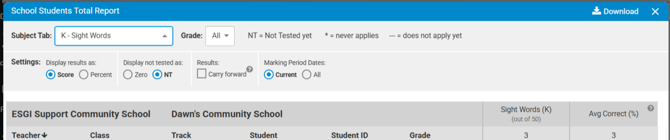
4. Once the report runs, easily switch to run the report for another Subject Tab by clicking the drop-down arrow in Subject Tab field. To run the report for a specific grade level, click the drop down arrow in the Grade field and select the grade level. If your school has varying marking period tracks, the legend will display (see Image 2):
-
* = never applies: The teacher or school does not have this marking period as part of their track
-
-- = does not apply yet: The teacher/school's marking period has not begun
5. Configure your report settings (see Image 2):
-
"Display results as":
- If the Score radio button is selected, the student score for the test will be shown.
- If the Percent radio button is selected, the percentage will be shown. -
"Display not tested as":
- If the NT radio button is selected, an "NT" will display if the student was not tested.
- If the Zero radio button is selected, those same values become 0. -
"Results":
- If Carry forward is checked, the score will reflect the student's last test session regardless which marking period they were tested in. If the student is not tested during the 2nd marking period, the 1st marking period's score will remain.
- If "Carry forward" is not checked, only the scores from specific marking periods are shown. -
"Marking Period Dates":
- If the Current radio button is selected, only scores from the current marking period will be shown.
- If the All radio button is selected, scores from all marking periods will be shown.
6. Sort the report by clicking on Last Name, Marking Period for a Test, or the Average % Correct (see Image 2). The arrow next to the column heading identifies the sorted column.
7. When you have completed reading your report results, You can Download the report via a PDF, Google PDF, Google Sheets file or Excel Worksheet (Image 2).
Image 1

Image 2