
To learn how to run a Subset test in the classic version of ESGI, click here.
Overview
The Subset Test feature allows you to administer only selected questions from a test, creating a shorter assessment without giving the full test.
Locating the Subset Test option:
There are two ways to locate the SubTest option in ESGI.
-
From the Teacher Homepage, select a student name and then click the “Session Details” button on the test that you will be creating the Subtest.
- Click the Test Title for which you would like to view the test session to open the test dashboard.
- Scroll to the bottom of the page to the Sessions section.
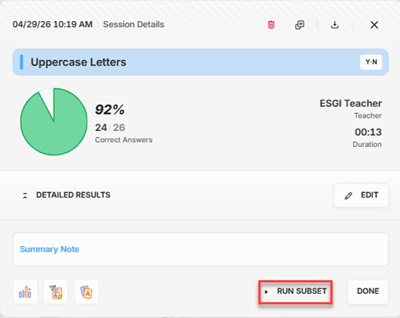
- Click the “Session Details” button in the lower right to open the test card window.(Image1)
Image 1
Creating a Subtest and Testing your Student:
-
In the test card window select Run Subset at the bottom of the test card.
-
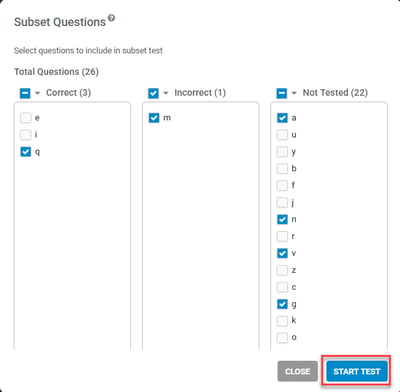
Select any questions (Correct, Incorrect, and Not Tested) to run as a shorter test.
-
Click Start Test (see Image 2).
Image 2
How to view your Subtest Results:
-
After you complete the subset test, the Test Session Results screen will display the student’s results.
-
The Pie Chart and Class Totals Report will show both the results of the subset test as if the entire test were given.