Overview
Rubric results are the scores, feedback, and performance levels a student receives based on a structured, objective set of assessment criteria. To print your Rubric Assessment results, follow the instructions below.
How to access the Rubric Report
Use the Rubric Report to review student performance on rubric-based assessments, monitor growth across marking periods. To open the report, follow the steps below.
-
From your Admin Dashboard, select Data to open the main reporting window.
-
Next, choose the level of data you want to review in the hierarchy:
-
-
Classes – To view rubric results summarized by teacher's Classes.
-
Groups - To view rubric results summarized by groups.
-
Please Note: If you are using a School Admin account, select School Reports to view reports associated with your specific school. If you are using a District Admin account, select District Reports to view data aggregated across multiple schools in your district.
3. In the report window, select Rubric Results. This will open the Rubric Report, where you can view scores, performance levels, and other details based on your selected filters and settings.
Rubric Report Settings
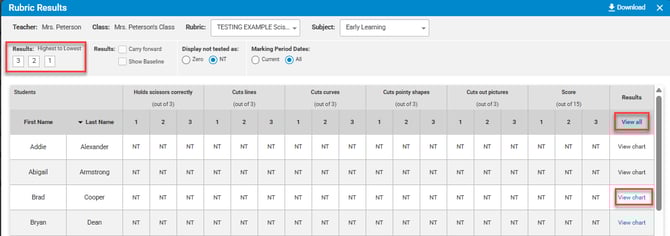
Highest to Lowest
-
Once in the report, hover over each number in the Rubric results window to see each performance level (for example, “Beginning,” “Developing,” “Proficient,” or “Advanced”).
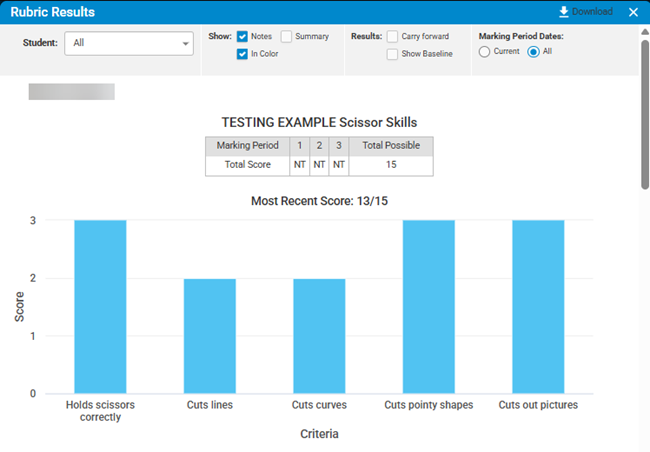
Note: Please reference Image 1 below for the report settings.
Show Baseline
-
When selected, the report will display the Baseline Score, which is the rubric score the student received the first time they were tested on that rubric, regardless of the test date or marking period.The baseline provides a reference point for measuring growth. Comparing a student’s current score to their baseline can help you determine whether interventions, instruction, or supports are having the desired impact over time.
Carry forward
-
If Carry forward is checked, the score shown for each marking period will reflect the student’s most recent test session, even if that session occurred in a different marking period.
-
If Carry forward is not checked, the report will show scores only for the specific marking periods in which the student was actually tested. Any marking period without a test will appear as “Not Tested” (or 0, depending on the setting described below), allowing you to see precisely when assessments occurred.
Display Not Tested As
Control how students who were not assessed in a given marking period appear in your data.
-
NT – If selected, an `"NT"` label will display when the student was not tested during that marking period. This option is helpful when you want to clearly distinguish between “no test administered” and a low score.
-
Zero – If selected, those same “Not Tested” values will be converted to a score of **0**. This may be useful if you are exporting data for systems that require numeric values, but keep in mind that it can affect averages or summary statistics.
Marking Period
Choose which marking periods to include in your view so you can focus on the most relevant data.
-
Current – If selected, the report will display only scores from the current marking period. Use this option when you want a snapshot of how students are performing right now.
-
All – If selected, the report will display scores from all available marking periods. This option is ideal for tracking growth, identifying long-term trends, and preparing for meetings, conferences, or multi-year reviews.
Note: Please reference Image 2 below for the report settings.
Image 2
Downloading the Rubric Report
When you are ready to print the Rubric Report you will have two options:
-
View Chart - will display a chart for an individual student.
- View All - Will download the report for a whole class.
Select the following options to customize what appears in the download:
Include question notes – Add any item-level or question-specific notes you have entered during scoring or review, providing additional context about student performance on particular rubric criteria.
Include summary notes – Add overall comments or summary observations for the class or student, which can be helpful when sharing results with families or teams.
Print in color – If your printer supports color, this option preserves any color-coding in the report (such as performance bands or highlighting), making it easier to distinguish performance levels and quickly interpret results.
Once you have selected your preferred options, proceed to download the report.
(Image 2)