Overview
Rubric results are the specific scores, feedback, and performance levels a student receives based on a structured, predefined, and objective set of criteria used for assessment. Rubrics define expectations for assignments, projects, or behaviors, using a grid to outline different levels of mastery, typically ranging from "exemplary" to "needs improvement". To print the results of your Rubric Assessment, please refer to the instructions below.
Instructions to Access the Report:
-
Select Reports on the left side of your Dashboard.
-
Select Rubric Results at the bottom of the Reports window.
-
Select your Class or Group.
-
Select the Subject Tab you wish to get the Rubric Test Results.
-
Rubric tests associated with the selected subject tab will appear.
Settings options:
Settings:
-
Show Baseline: The Baseline Score is the rubric score the student received the first time tested (regardless of the test date or marking period).
-
Carry forward - if checked, the score will reflect the student's last test session regardless of which marking period they were tested in. For example, if the student is not tested during the 2nd marking period, the 1st marking period's score will remain. Note: If "Carry forward" is not checked, only the scores from specific marking periods are shown.
Marking Period:
-
Current - If selected, only scores from the current marking period will be shown.
-
All - If selected, scores from all marking periods will be shown.
Option to “Include not tested”
- If selected, all students, including those not tested are included
- If not selected, only students that have been tested will be included
Not Tested
-
NT - If selected, an "NT" will display if the student was not tested.
-
Zero - If selected, those same values become 0.
Viewing Report
Select “Run Report” to view the report. If needed, changes to the selected settings can be made in this view.
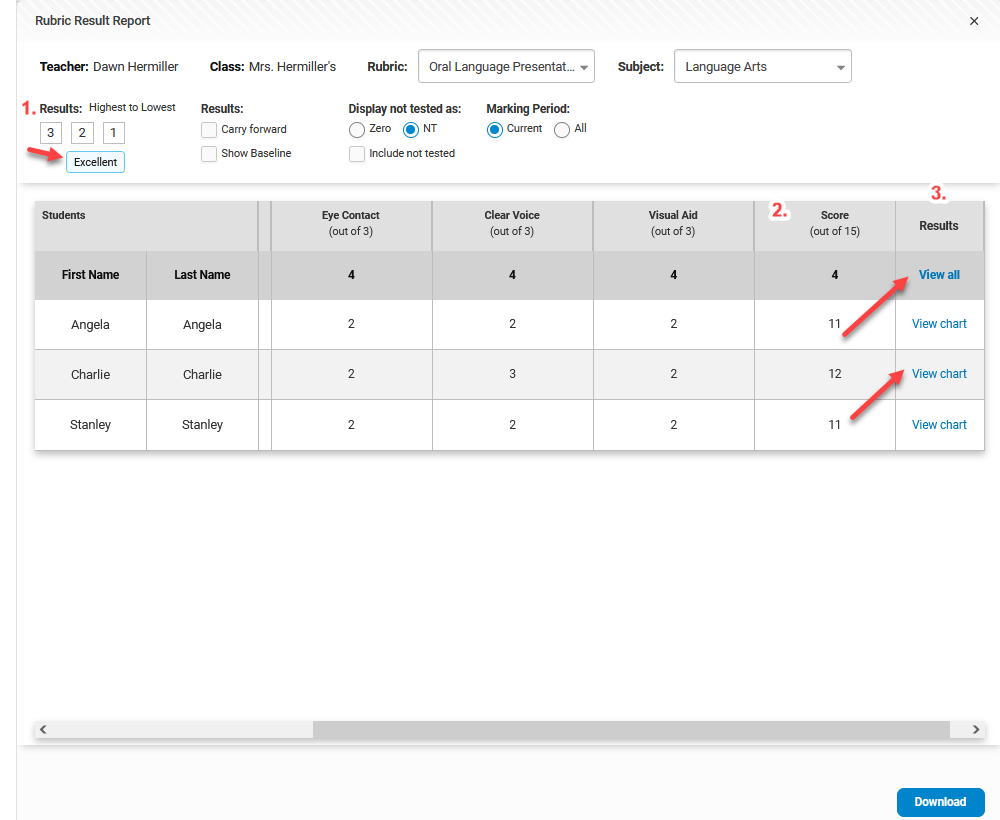
A table will display the rubric for all students in the selected class or group based on the subject tab that was selected. Navigate to a different subject tab or test by using the drop-down arrows.
1. Results: Highest to Lowest
- Text based levels will display the text when hovering over the score value.
2. Score:
- The score each student received against each criterion will be displayed under the marking period.
- Total score is displayed in the right-hand column.
3. View Results:
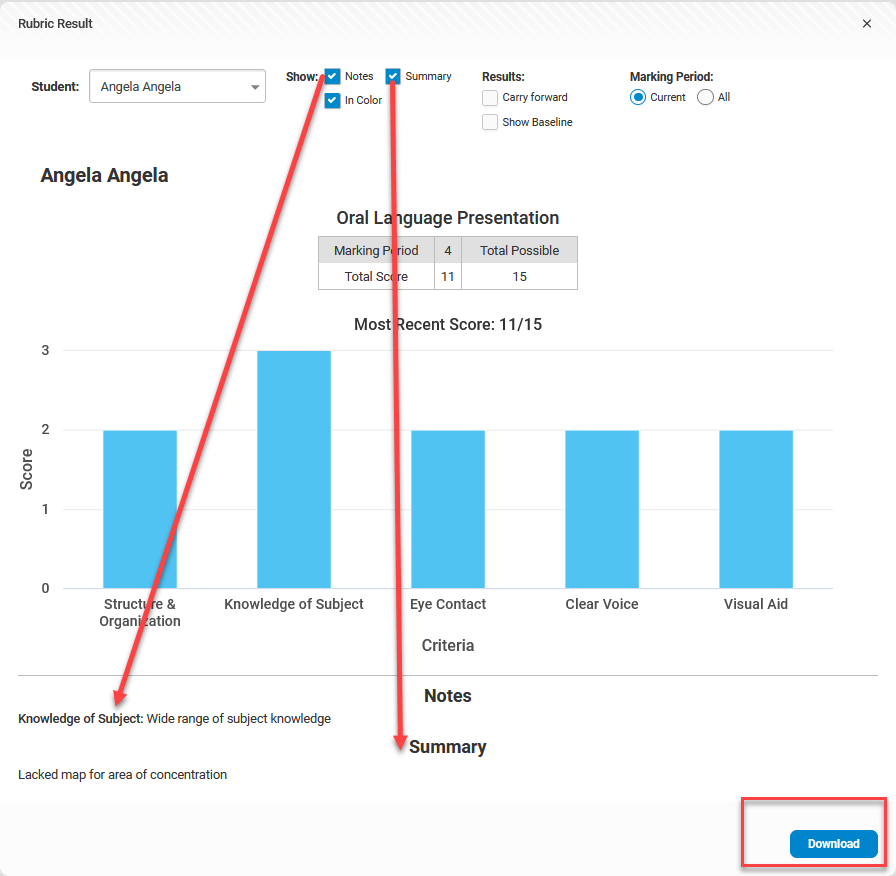
- Selecting View All will display a chart for all students that can be downloaded.
- Selecting View Chart will display the chart for the individual student which can be downloaded.
Before downloading the report, there are options to include question notes, summary notes and to print in color.