
To learn how to print test session details in the Classic Version of ESGI, click here.
Overview
How to View Test Session Details from the Homepage
1. From the Homepage, select the class, group, or student for which you’d like to see test session details.
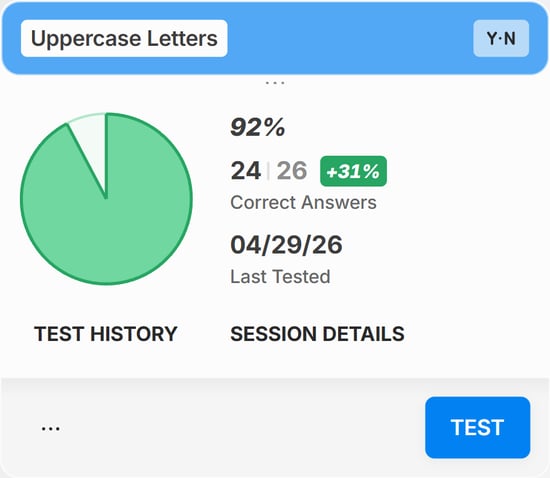
2. Click the SESSION DETAILS button located on the bottom of the test card (see Image 1).
Note: If you're viewing the X-Small Test Card type while you have a student selected, or if you're viewing the X-Small or Small Test Card Type while you have a class or group selected, you will have to select the three dots  icon at the bottom left of the Test Card (see Image 1) first, then select Last Session Details (if a student is selected) or Session Details (if a class or group is selected).
Image 1
How to View Test Session Details from the Test Dashboard
1. Click on any Test Card from the homepage to go to the Test Dashboard.
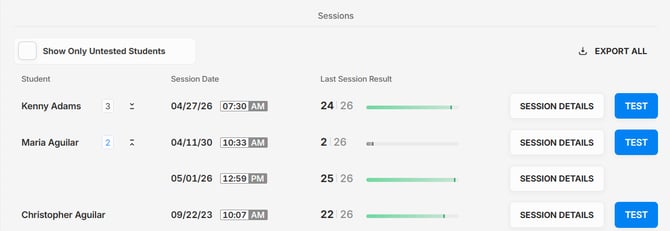
2. At the bottom of the Test Dashboard, under Sessions, locate the desired session from the list that appears. The tests will be listed by the date given.
3. Click on the Session Details button for any student and test to open the Test Session Details modal (see Image 2).
Image 2
How to Download Individual Test Sessions
1. Select the SESSION DETAILS Button from either across the student's name (Test Dashboard) or from their Test Card (Homepage).
Note: If there are multiple test sessions select the  dropdown arrow next to the student's name. The dropdown will display all tests session with the option to view and download (see Image 2).
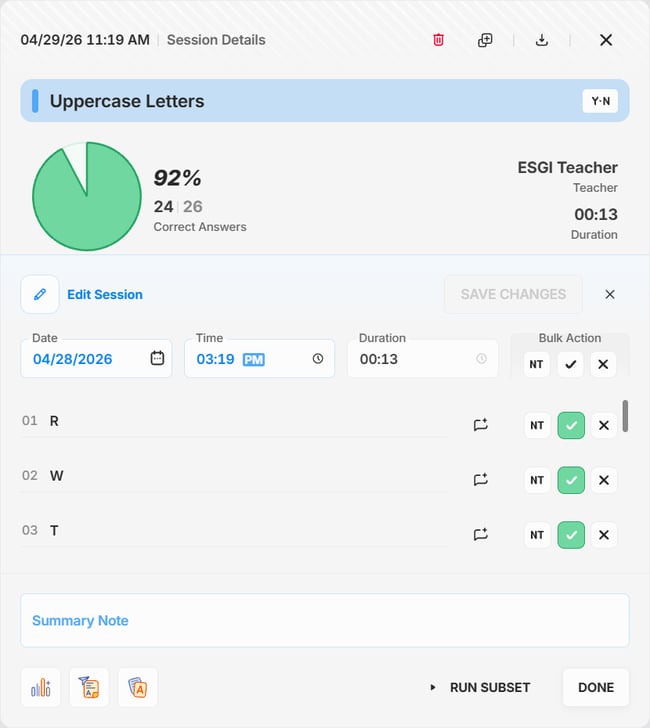
2. At the top right of the Session Details modal, select the Download  button (see Image 3).
4. When the download is complete, opening the PDF will cause the Test Session Report to display (see Viewing the Test Sessions Report section below).
Image 3
How to Export All Test Sessions (Test Dashboard Only)
At the bottom of the Test Dashboard, you will see an EXPORT ALL option, which exports session details for the entire class, and a SESSION DETAILS option, which you can select and print for individual students.
-
The EXPORT ALL will have 4 options to choose when downloading (see Image 2):
-
One PDF file for current session
- One PDF for all test sessions
- Zip Current session
- Zip all sessions
-
-
Select your download option and then select GOT IT in the download window.
Viewing the Test Sessions Report
1. All data shown in the test session details report will display on the PDF (session number, duration, date, time, score, correct, incorrect, not tested questions and any notes that were recorded).
2. The PDF page header will print the date, subject tab, teacher (that administered the test) and class.
3. Each page in the PDF will be numbered at the bottom-right.