Overview
This article explains how to manage your ESGI login credentials. It includes step-by-step instructions for resetting a forgotten password using the Password Recovery feature, as well as updating your username and password from the My Account page after logging in. Troubleshooting tips are also provided for locating password reset emails and successfully regaining access to your account.
This Support Page provides step-by-step instructions on:
Resetting Your Forgotten Password
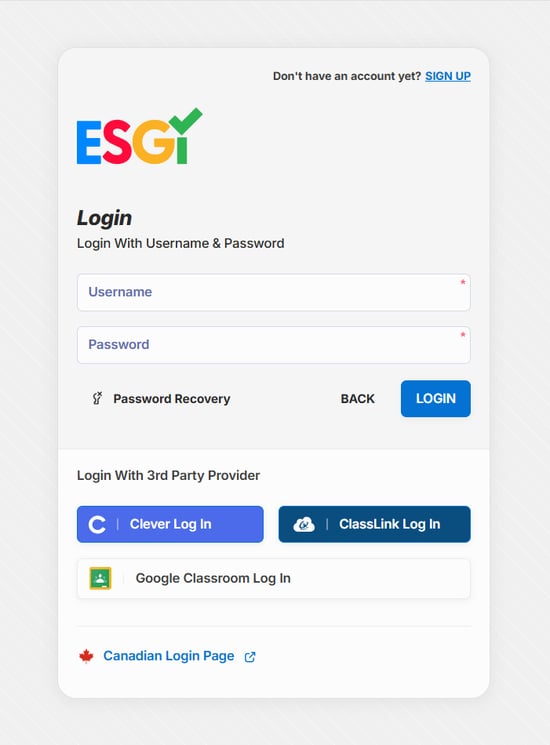
1. Go to https://app.esgisoftware.com/login and click the blue “Login” button (if you are logging in from Canada, please use app.ca.esgisoftware.com).
2. Click Password Recovery (see Image 1).
3. Enter your email address or username, then SEND RESET LINK.
4. If you entered the correct username or email for your ESGI account, you will receive a confirmation message that the password reset email was sent. If you do not receive the email, please check your spam folder and any other email inboxes.
5. An email from ESGI Support will be sent to the email address associated with your account. If you do not receive the email, remember to check all email inboxes, as well as your spam folder.
6. In the email, click the blue RESET PASSWORD.
7. Enter your new password twice, then click Save:
Image 1
Editing Your Username and Password
1. Log into your account, click the  Menu button and select My Account.
2. On the My Account screen, update your username and/or password (see Image 2).
3. Click SAVE when finished.
Image 2
