
To learn about the My Account page, as well as how to edit your username and password in the Classic Version of ESGI, click here.
Overview:
Table of Contents
Resetting Your Forgotten Password
1. Go to https://app.esgisoftware.com/login (if you are logging in from Canada, please use app.ca.esgisoftware.com).
2. Click Forgot Password?.
3. Enter your email address or username, then Submit.
4. If you entered the correct username or email for your ESGI account, you will receive a confirmation message that the password reset email was sent.
5. An email from ESGI Support will be sent to the email address associated with your account.
Note: If you do not receive the email, please remember to check all email inboxes, as well as your spam folder.
6. View the email and click the green click here hyperlink.
7. Enter your new password twice, then click Save.
Accessing the My Account Page
1. Click on the Profile  icon located at the bottom left corner of your screen.
2. Select the  arrow to the left of the popout menu to view all of the My Account page options, including Personal Information, School & District, Marking Periods, and Login Information.
Personal Information
Profile picture - You can upload a profile picture to your ESGI Account by clicking the  button and selecting an image file.
Name - You can edit your Title by clicking on the dropdown and selecting your preferred title. You can also edit your First Name and/ or Last Name by clicking on their respective field and typing your preferred name(s).
Location - You can edit your Country and State by clicking on the respective dropdown and selecting from the list that appears.
Email – The email address of your account can only be changed by a District Administrator or by emailing our Support Team at support@esgisoftware.com.
Grade Levels - Edit your Grade Levels by, first, clicking on the  button, then, clicking on each desired Grade Level that appears on the Grade Levels pop out menu, and lastly, clicking the blue Select button at the top of the pop out menu.
Expiration Date – If your account expires, it is "frozen" until you re-activate it with an Activation Code or credit card. You will then be able to sign in to your account, and all of your data will be there. You can also renew your account by clicking on the Renew button.
Terminate Current Session - Click the Logout button at the bottom of the Personal Information Page to terminate your current session.
Note: Please click on the blue Save Changes button when you are finished adjusting your personal information.
School & District
Linked to District: - Displays whether or not the account is linked to the district (Linked to District = YES, not = NO). To request to have your account linked to your district, please contact our Customer Support team at support@esgisoftware.com.
Location - You can edit your Country and State by clicking on the respective dropdown and selecting from the list that appears.
District - You can search for and select your District's name.
-
If your District doesn't appear from the list, you can select the option which says My district is not listed.
- If your School does not belong to a District, click on the option which says My school does not belong to a district.
School - You can search for and select your School's name.
-
If your District doesn't appear from the list, you can select the option which says My school is not listed.
Note: Please click on the blue Save Changes button when you are finished adjusting your School & District information.
Marking Periods
In accounts that are linked to the district, the marking period type (semesters, trimesters, quarters, etc.) can only be edited by ESGI. A District Admin can edit the marking period dates. Please contact your ESGI District Admin or email: support@esgisoftware.com to make any necessary edits.
Changing the Marking Period Type and Marking Period Dates affects the data on reports. When a test is administered, the test session date is saved. If it was given at the end of the second trimester and the Marking Period Type was changed from trimesters to quarters, the data might display in the third quarter when the dates were changed.
In accounts that are not linked to the district, the teacher can create and edit the marking periods.
Editing a Marking Period (Admins and unlinked Teachers only)
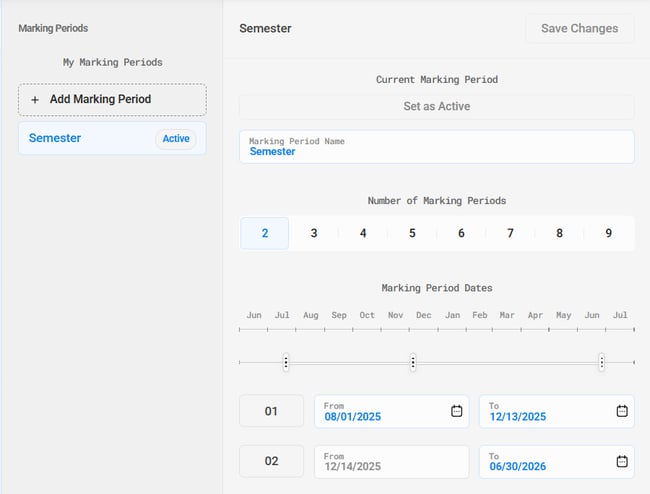
1. Adjust the name by clicking and typing into the Marking Period Name field (see Image 1).
2. Click on the Number of Marking Periods that corresponds with the type of marking period you want (semesters, trimesters, quarters, etc.).
Note: A maximum of nine marking periods can be added.
3. Adjust your Marking Period Dates either by:
- Clicking and dragging the markers on the Calendar slider.
- Manually typing in their From and To dates in the appropriate fields.
- Clicking on the Calendar icon in the From and To fields and selecting the corresponding dates.
4. When you are finished editing your Marking Periods, click the blue Save Changes button.
Creating a New Marking Period (Admins and unlinked Teachers only)
1. Click on the + Add Marking Period button (see Image 1).
2. If you want this new Marking Period to be your active marking period, leave the Set As Active checkbox underneath Current Marking Period checked, otherwise uncheck it.
3. Adjust the name by clicking and typing into the Marking Period Name field (see Image 1).
4. Click on the Number of Marking Periods that corresponds with the type of marking period you want (semesters, trimesters, quarters, etc.).
Note: A maximum of nine marking periods can be added.
5. Adjust your Marking Period Dates either by:
- Clicking and dragging the markers on the Calendar slider.
- Manually typing in their From and To dates in the appropriate fields.
- Clicking on the Calendar icon in the From and To fields and selecting the corresponding dates.
6. When you are finished editing your Marking Periods, click the blue Create button.
Image 1
Login Information
Username - To change your username, please contact your ESGI District Admin or email support@esgisoftware.com to make any necessary edits.
Password - To change your password, click on Change Password, enter your current password, New Password (and re-enter New Password), then click Set New Password.