Overview
How to Run the Item Analysis Report
-
From your Admin Dashboard, select Data located on the left side of the application window.
-
Click on the District/School Report button in the bottom right corner of the screen. Please note: The “District Reports” or "School Reports" button will remain constant throughout all levels of the Data Page hierarchy by default.
-
In the Reports Window, click on Item Analysis.
Test Selection and Report Settings
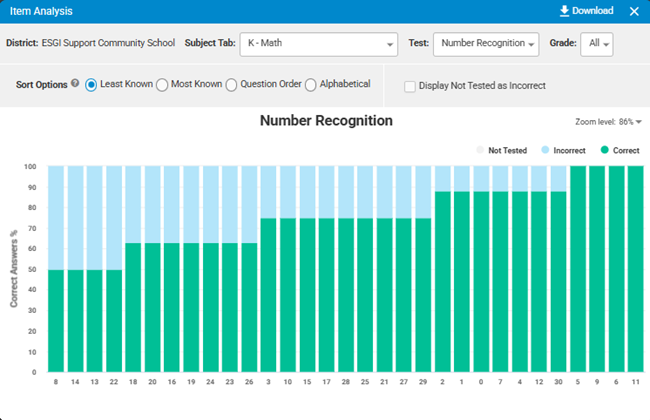
- At the top of the Item Analysis Report window, you can select a Subject Tab, and select a test within that Subject Tab. You will also have the option to filter the data by grade level (Image 2).
- Change Sort options, which include the ability to sort by:
- Least Known – Displays the least known item(s) first in the graph.
- Most Known – Displays the most known item(s) first in the graph.
- Question Order – Displays the questions in the order the student answered them.
- Alphabetical – Displays the questions in ascending alphabetical order.
3. Display not tested as incorrect: Selecting this option will change the graph to count “Not Tested” students together with students who answered the question incorrectly.
Data Analysis Section
-
The graph displays data based on the selected Subject Tab and test, along with your chosen Sort settings and Not Tested option.
-
When you hover over any bar, you’ll see the number of correct, incorrect, and not tested responses for that specific question. The graph also shows the total number of students tested (Image 1).
Download Options
To download the Item Analysis report select the "Download" option in the upper right corner (Image 2). When downloading the report you will have the option to download via PDF or Excel.- Choosing between PDF and Excel file types.
- PDF – Downloads a report which is visually similar to the report displayed on your screen.
- Excel – Downloads a data-centric report which is divided into three tabs:
- Test Name – Provides student and item specific information directly related to the report displayed on your screen.
- Details – Groups students into three categories per item: correct, incorrect, and not tested.
- Graph – Provides a graphic file of the bar graph displayed on your screen.
Image 1
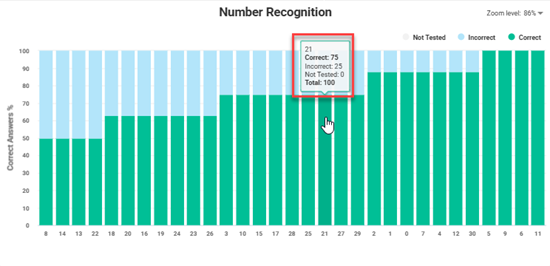
Image 2