
To learn about hiding or deleting a Subject Tab in the Classic Version of ESGI, click here.
Overview:
Subject Tabs can be hidden or deleted from your Home Screen. Any tests on the Subject Tab will still be available in Test Explorer, as well as any test data that was collected on the test. If a test or Subject Tab is hidden or deleted and then added back, the test data for those students will populate.
Step by Step Instructions
1. Expand the Subject Tab Dropdown by clicking on the  icon at the top of the homepage screen.
2. Click on the Edit Pencil  button to the right of the Subject Tab that you wish to hide or delete (see Image 1).
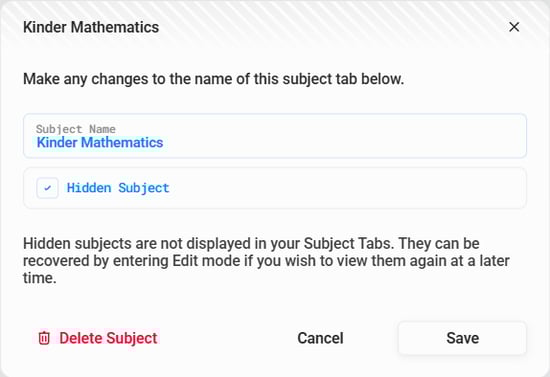
3. Check the Hidden Subject box (see Image 2) to hide this Subject Tab, then click Save.
Note: If you wish to delete this Subject Tab, you can do so by clicking on the red Delete Subject button (see Image 2).
Image 1
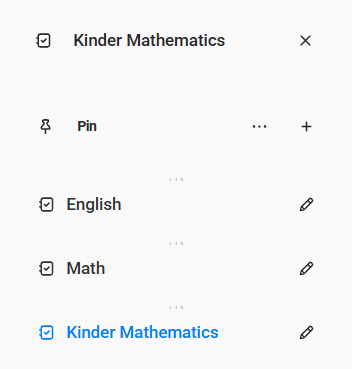
Image 2
Viewing and Unhiding a Hidden Subject Tab
1. You can view a hidden Subject Tab by clicking on the  button (see Image 1) then clicking Show hidden subjects.
2. A hidden Subject Tab will appear grayed out with the edit pencil and an eye icon to the right of it.
3. Click on the Edit Pencil button to the right of the Subject Tab that you wish to unhide.
4. Uncheck the Hidden Subject box (see Image 2) to unhide this Subject Tab, then click Save.