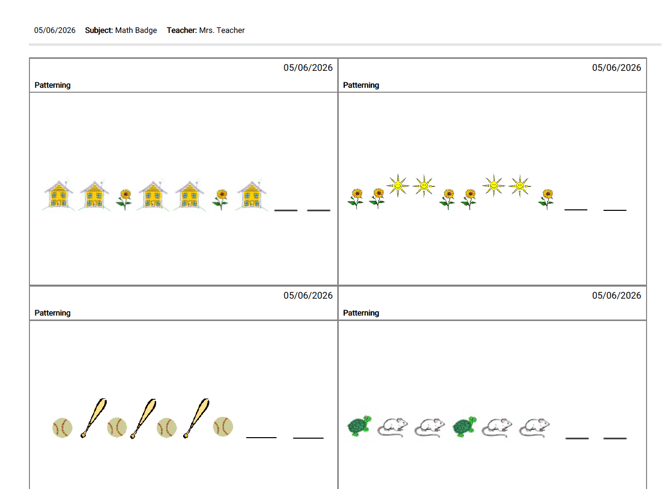
To learn more about Flashcards in the Classic Version of ESGI, please click here.
Overview
Flashcards provide your students and their parents with assessment items that the student answered incorrectly, giving them an opportunity to review and practice skills at home. You can print a hard copy of each missed item for an individual student or for the entire class. For additional practice, a full set of flashcards can also be printed, allowing students to review every item on an assessment, whether it was answered correctly, answered incorrectly, or not presented during testing. This article explains how to generate and print flashcards to support student learning and reinforcement.
Some key points:
- Flashcards do not print for Single Score tests.
- Items display in alphabetical order, not in the order they were tested.
- To save paper, flashcards can print six, nine or twelve on a page.
Printing Flashcards from the Homepage
1. Click on a student's name from the Teacher Homepage.
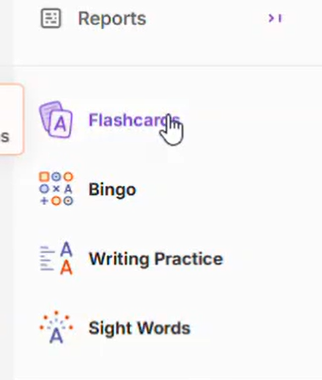
2. Click on the Flashcards icon in the Reports Selection Panel on the right (Image 1).
Image 1
Printing Flashcards at the End of the Test
1. Click on a Student's name.
2. Select a Subject Tab.
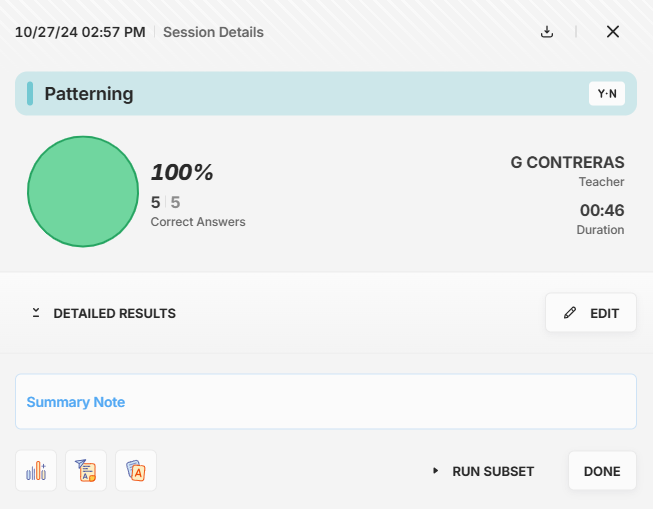
3. Click on Session Details.
4. Click on the Flashcards icon at the bottom of the test card (Image 2).
Image 2
Select Flashcards and follow the instructions below to print a set of flashcards for any student.
Printing Flashcards for the Entire Class or for One Student
1. Select Classes, Groups or Students, then click on Flashcards in the Reports selection Panel on the right.
2. Select the Subject Tabs and test(s) to include.
- Once a Subject Tab is selected, all tests on that tab will display. To not include a test on the Flash Cards, uncheck the box to the left of the test name.
Include:
- For Incorrect only, in the Test Card, select the Number of incorrect items to print.
- If Incorrect + Skipped is selected, then all incorrect and skipped/not tested questions will be included.
- If Full Set is selected, a complete set of all test questions will print without student names.
3. To choose a specific test session date, click on the expand icon to the right of the test name and select the desired test session dates to include.
4. Select Generate when ready to download. The Flashcard will print in PDF format (Image 3)
Image 3