
To learn more about editing or removing students in the Classic Version of ESGI, click here.
Overview:
Student profile information (first/last name, ID number, language, and grade) can be edited at any time. A student can also be removed from a teacher's class or moved to a different teacher's class by a School or District Admin. Removing a student does not delete the student record or data.
Note: If you are missing the + or Student Manager buttons, your district is importing teacher and student information (or considering it), so students can only be added, edited, or removed via the import files. If you think this is an error, please email support@esgisoftware.com.
Editing Students:
1. Click on the  icon to the right of the name of the student whose Student Profile you wish to edit (see Image 1).
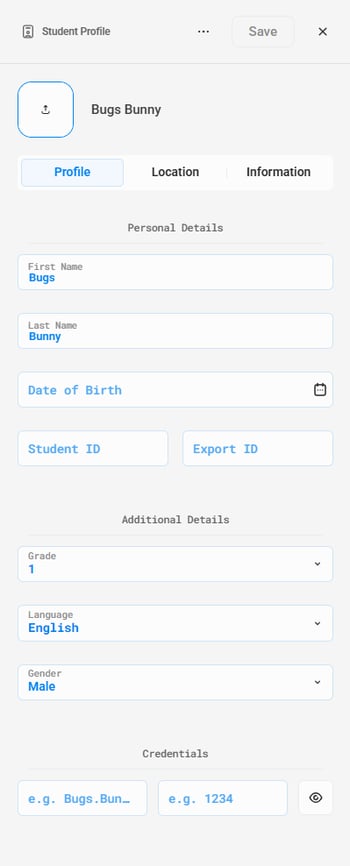
2. This will take you to the Student Profile (see Image 2).
3. There are three main tabs of Student information within the Student Profile: Student Profile, Location, and Additional Information:
- Student Profile: You can edit the information by clicking and filling in the information in the following fields:
- Student Name (First/Last)
- Date of Birth
- ID (Student/Export)
- Grade
- Language
- Gender
- Credentials
- Location: Click on any Classes/Groups to add or remove the student. A student who is a part of a Class/ Group will be signified by the blue checkmark next to the name of the Class/ Group. If a student is removed from a Class/ Group, they will NOT have this blue checkmark.
-
Additional Information: The following information can be set and edited:
-
Race/Ethnicity
-
Lunch Status
-
Special Programs including Gifted/Talented, SpEd, RTI, ELL/ESL, and 504.
- Additional Comments
-
5. Click the Save button at the top right of the student profile to save any changes you made to the student’s information or location. Changes will NOT be applied if you do not save.
Image 1:
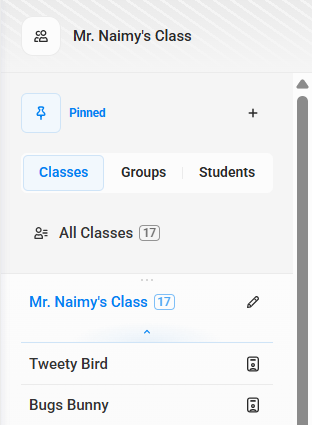
Image 2:
Removing Students:
1. From the home page, click the Edit Pencil  icon next to the class containing the Students which you wish to remove or edit (see Image 1).
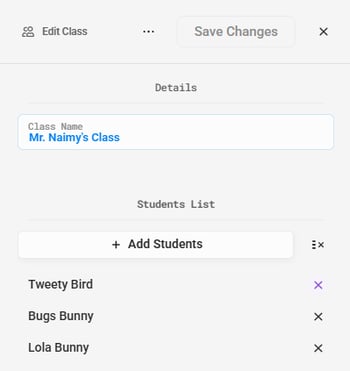
2. From the Edit Mode Menu, locate the student whom you wish to remove from your class under the All Students list (see Image 3), and click on the  icon to the right of their name.
3. A warning popup will appear stating that removing this student from the list cannot be undone when the changes are saved.
4. Click Remove to close the popup, then click Save to apply the changes.
Note: Other options to remove students are to either go to Student Manager, select the student and unassign them there.
Image 3:
Deleting Students:
1. Click on the icon to the right of the name of the student who wish to delete (see Image 1).
2. Click the  button from the top of the Student Profile (see Image 2).
3. Click Delete.
4. The Delete Student popup will appear. Confirm Student Deletion by clicking on the red Delete button.