To learn how to delete or restore a test session in the Classic Version of ESGI, click here.
Overview
This article outlines steps to take when needing to delete or restore a test session. Please note that scores from a first test session will appear as the baseline on all reports. If the first test session is deleted, then the next test session will become the baseline.
Delete a Test Session
-
Select the Class List Dropdown to display your class, then select the name of the student whose test session you wish to delete or restore.
-
Select either the "Test Name" or the clock at the bottom of the test card (Image 1).
-
Click the Test Session option on the screen or scroll to the bottom of the Details screen to Test Sessions.
-
Select the 3 little dots at the top of the testing window (Image 2).
-
Select the "Delete test session" (Image 2)
Image 1
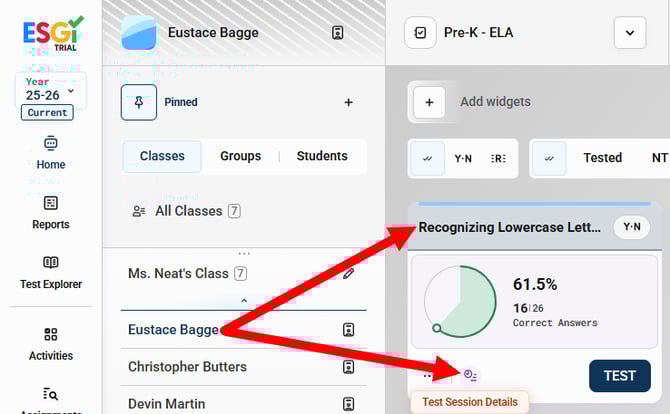
Image 2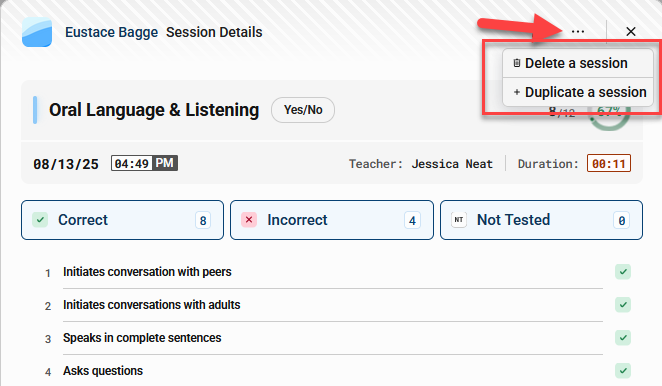
Restore a Test Session
-
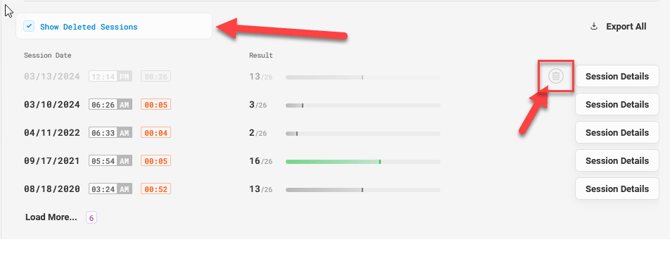
Under Sessions you will see the option "Show Deleted Sessions." To restore a test session, click the "Show Deleted Sessions" box (Image 3).
- Click on Session Details to the right of the gabage can.
- Click the "Restore" button at the bottom to restore the test session.
Image 3