Overview
ESGI’s rubric assessments allow you to select whether you would like to assess a single student or a class/group of students. Follow the instructions below to create a Rubric Test
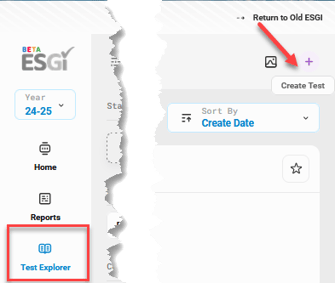
1. On the left side of your home screen select Test Explorer. In the upper right corner of your screen, click on the “+” and Create Test.
Image 1
2. Select Rubric on the Create New Test page.
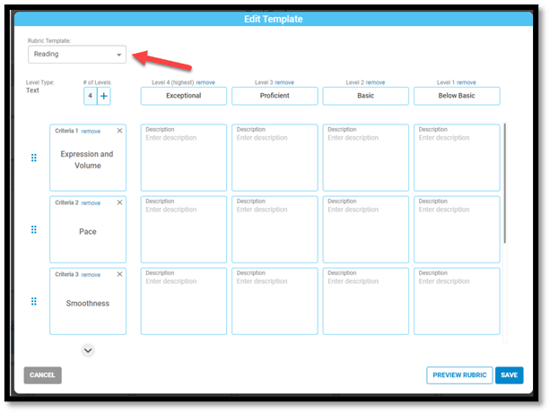
3. Choose one of our four pre-loaded rubrics templates (Reading, Oral Language, Writing, or Math). These pre-loaded templates will auto-populate the criteria and levels used to evaluate a student (image 2).
Image 2
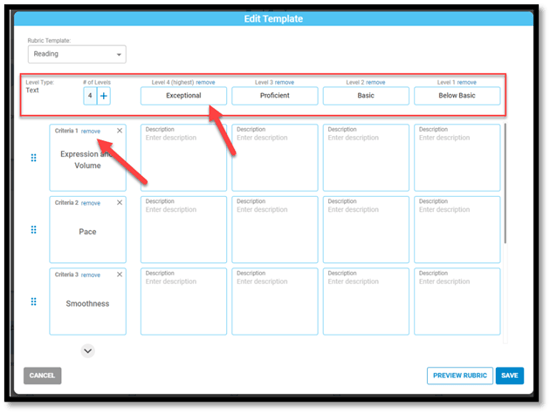
4. Fill in the description for each criterial and level. A minimum of 1 to a maximum of 10 criteria can be added.
- To add the option of a minimum level of zero, select Levels - edit and confirm.
5. You can then preview or save your rubric.
Image 3
Creating Your Own Rubric
1. Select Create Your Own Rubric
2. You will be prompted to 'Add Criteria' to your rubric. A minimum of 1 to a maximum of 10 criteria can be added.
Image 4
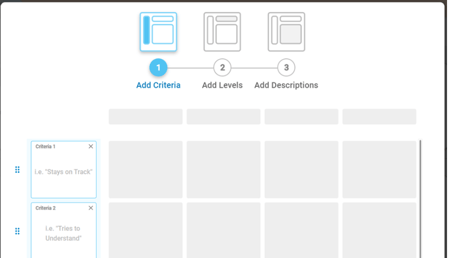
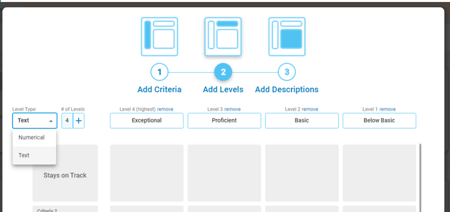
3. Next, you will add levels of proficiency. These can be either numerical or text. To add the option of a minimum level of zero, select Levels - edit and confirm (image 5).
- Levels – Numerical or Text
Image 5
4. Next, create descriptions. After a description is added you have the option to add additional details that may be referenced during the assessment (image 6).
Image 6
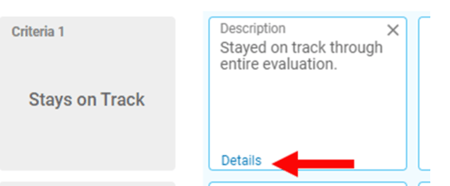
📌Please note: These details are not displayed on the official rubric, only on the test screen if accessed.
5. To complete the process, you must set the name and description for the rubric, as well as other test metadata in the Select Settings pop-up. Save and Close.
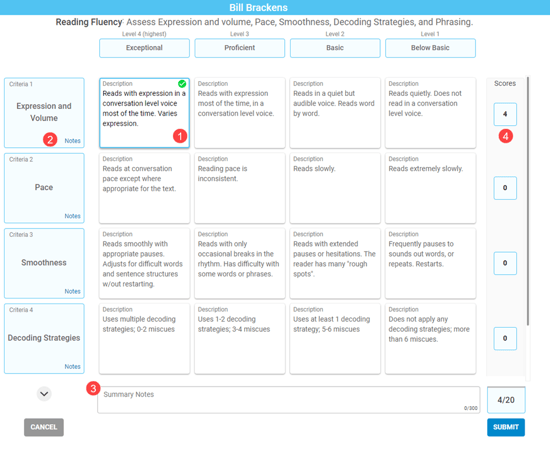
Rubric Test Screen
1. The test screen displays the full rubric and is teacher-facing.
2. Functionality:
- Users select performance by clicking on the description for the respective Criteria and level. Notes can be added against each selection.
- Summary notes can be added in the lower field.
- The score for the rubric is the sum of all selections. The total possible for the rubric is the # of levels x # of criteria.
Image 7 (Rubric Test Screen)