To learn how to create a Test Intro Page in the Classic Version of ESGI, click here.
Overview
Test Intro Pages allow you to add directions, example questions, or helpful visuals that students will see before beginning an assessment. This article walks through how to create, edit, preview, and manage a Test Intro Page for assessments you have authored in ESGI.
Note: Test Intro Pages can only be added to tests you own or have copied, and copied tests do not retain prior student data. You can only create Test Intro Pages for tests you have authored (see Image 1). If you want to use a system test or a Noted Author test, you need to make a copy of it first, which will make you the author. Then, you can add a Test Intro Page. It's important to remember that when you make a copy of an assessment, only the questions will be copied, not the test data. So, if students have already taken the test, their data won't transfer to the new copy.
Step by step instructions
1. Log into ESGI and click on Test Explorer from the column located on the left side of the screen.
2. To filter by your tests, select My Tests located at the top of the Test Explorer Page below the search bar. You can also use the Search Tool to find and choose the test you want.
3. After you have located the test that you wish to add an into page to, click the preview test  button (see Image 1).
4. Click on Test Introduction (optional) (see Image 2).
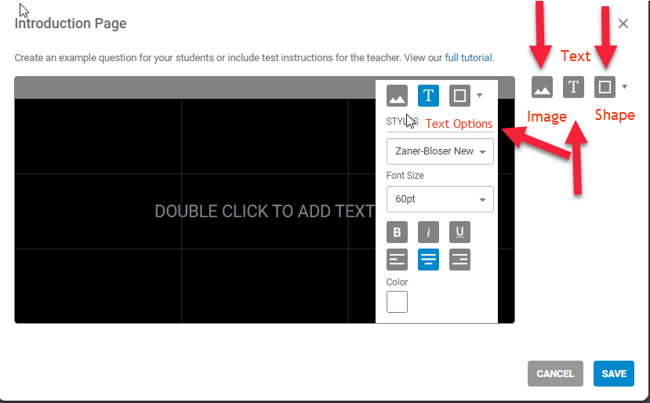
5. Double click and enter the directions or sample test question. The text color, size, and font can be customized by clicking the  icon (see Image 3).
6. Images can also be added by clicking the  icon (see Image 3) and either locating an image in from our ESGI Stock Gallery or uploading your own.
7. You can also add shapes by clicking the drop down located next to the  icon (see Image 3). Once a shape is selected, you can customize the shape's fill color, border color, and border stroke size.
8. When you're finished editing, click the blue SAVE button in the lower right corner (see Image 3).
9. The Test Intro Page will display as the first thumbnail image in the Test Details. It will be easily identifiable by its title which will appear in red instead of gray.
10. To make any changes, or delete the Test Intro Page, click the three dots in the upper right corner of the Test Intro Page, and click Edit or Delete.
11. Preview the Test Intro Page by clicking the PREVIEW button (see image 2).
12. When done, click SAVE AND CLOSE (see Image 2).
13. The Test Intro Page will be the first screen to appear at the beginning of the assessment once you begin to administer the test.
14. From the Test Intro Page, click START TEST to move on to the first question that follows and begin testing.
Image 1
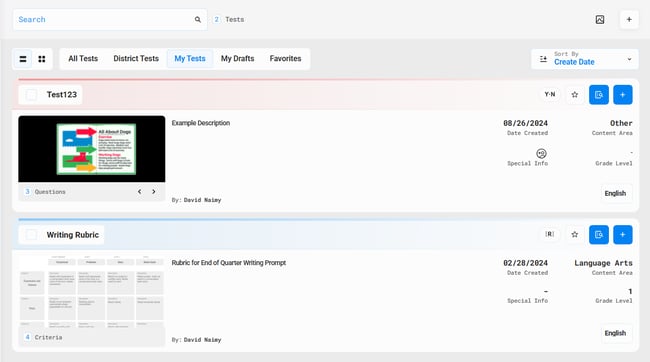
Image 2
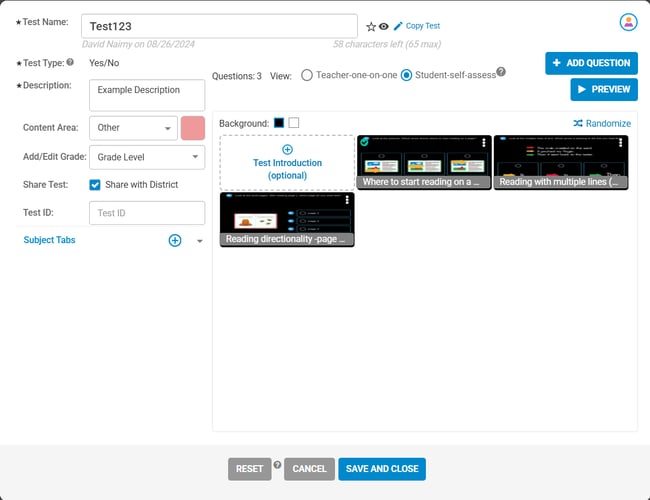
Image 3