To learn more about Bingo activities in the Classic Version of ESGI, please click here.
Overview
Bingo is a personalized game that can be played in class or sent home for students to play with their families. Teachers create custom bingo cards that are based on student’s test results.
How to Setup Bingo Cards:
-
In the Reports panel on the right side of your Teacher screen, select “Bingo.”
-
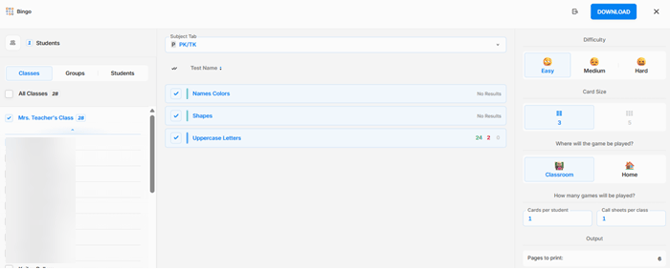
In the Bingo Window start with selecting the following: (Image 1)
-
Select the student from the Class, Groups, or Students list for whom you want to generate Bingo cards.
-
Subject Tab and the test questions that will populate the game cards. Note: Tests with less than eight questions are excluded from the test selection step.
-
- Difficulty level:
- Easy: 25% of the card is randomly chosen from what the students got Incorrect and Not Tested, and 75% of the card is chosen from the Correct answers.
- Medium: 50% of the card is randomly chosen from what the students got Incorrect and Not Tested, and 50% of the card is chosen from the Correct answers.
- Hard: 75% of the card is randomly chosen from what the student got Incorrect and Not Tested, and 25% is chosen from the Correct answers.
- Card size (3x3 or 5x5):
- If the selected test includes fewer than 24 questions, only the 3x3 card size option will be available..
- Where will the game be played?
- Classroom: Select # of cards per student and # of calls sheets per Class.
- Home: Selet the # of people playing at home and the # of cards per student and # of calls sheets per Class.
- Output:
- Enter the number of pages to print preview.
- Enter the number of pages to print preview.
How to Download Cards:
- Before you print your Bingo Cards, select the Print Preview Button next to the Download Button.
- The Print Preview will display both the call sheet and the students Bingo card in a PDF format.
- In the Print Preview window you will have the option to print, download, and Save to Google Drive.
- Download - Select the download button and your cards will download as a PDF.
Image 1