
Overview
ESGI’s Assignment Center serves as the new centralized location for all student Self-Assess tests. Step by step instructions for how to use the Assignment Center for testing your students can be found below:
Accessing Assignment Center:
Click on the “Assignments” button in the left margin of the home screen, then “+” to add a new assignment:
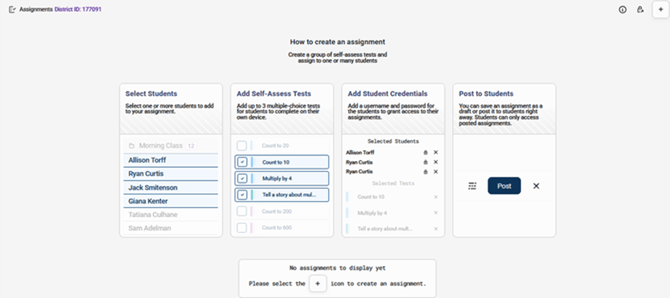
Creating Assignments:
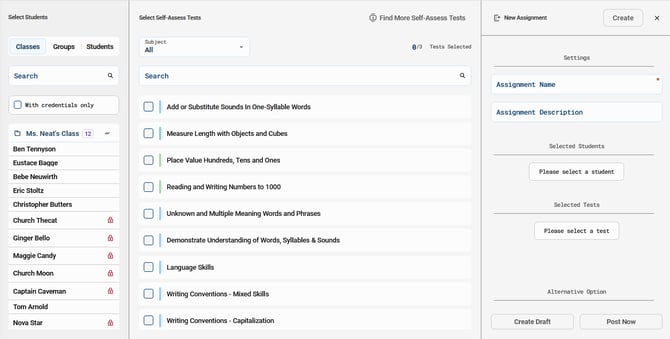
- Enter Assignment Name & Description. Please note: The Assignment Name is a required field, an Assignment Description is optional. (Image 2)
- On the left side of the Assignment window, select students from your Class, Group or Student list.
- Students must have credentials set up before an assignment can be completed. A red lock symbol will be displayed to the right of a student’s name if their credentials have not been added yet. Clicking on the red lock symbol will allow you to add credentials for the student.
- Select and add your Self-Asses Tests.
- Use the dropdown arrow to select the Subject Tab. Note: Only Self-Assess tests that are already added to a Subject Tab will display.
- Select and add up to three Self-Asses tests for students to complete
- Once you have completed the steps above, you have the option to click on Create, Create Draft or Post to students right away.
-
- Create: Will save and can be posted to students later
- Create Draft: Will save and can be edited and completed later
- Post to Students: Post the assignment to your students to begin testing right away.
Assignment Preview Window:
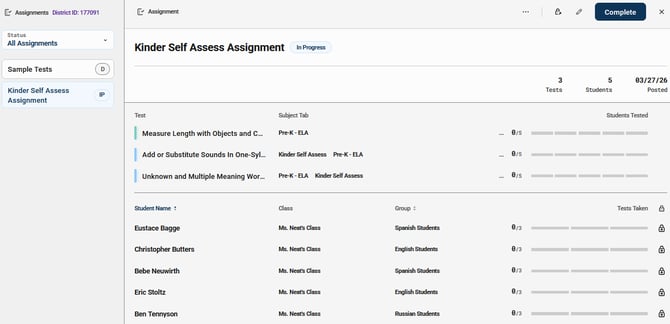
Once your Assignment has been created, a preview window will display your Assignment along with any other Assignments that are created. The assignment information will be listed as below. (Image 3)
- Assignment Name
- Current Assignment status (defaults to last status chosen when created)
- Use dropdown menu to filter for Draft, Not Started, In Progress or Completed.
- Assignments will default to chronological order by Create Date, with the most recently created Assignment at the top.
- Assignment Description (if filled out)
- Created/Posted/Completed Date
- Assignment Status
- Subject Tabs and Self Assess Tests
- Students assigned
- Completion progress for each test and student
- Add, edit, or view student credentials
- Select the lock at the end of the students name to edit.
- Select the loct at the top of the window to print the student credentials.
- Edit button - Takes you back to Create/Edit workflow, where you can make changes to the tests or students that are assigned to a particular Assignment. Note: If an assignment is "In Progress" or "Completed", you will not be able to make any edits.
- Delete – Deletes the Assignment and removes the students’ access to it (note that already completed test sessions will NOT be deleted, just the assignment itself and subsequent access to it).
- Complete Assignment – Manually completes the Assignment, closing off Student access to it. Please note that once an Assignment has been manually Completed, all test sessions will be marked complete and partially completed tests will count with the score that has been achieved at the point of completion.
For assistance with connecting your student with their student device. Please review our Support Page Article Student Screen