Overview
ESGI’s rubric assessments allow you to select whether you would like to assess a single student or a class/group of students. See each selection below for details. For administering other types of tests including Rubric tests, you can also referenced this article here.
Administering a Rubric Test to a Single Student
- Click on the student's name in your class list, select your Rubric assessment, and click on “Test”.
- From the right modal, select “One Student”. (If you would like to switch to testing your class, simply click “Entire Class” instead. See the section below for details on how to continue when testing an entire class.)
- Click “Test”.
- For each criterion, choose the level achieved by the student by clicking on the corresponding box. The score will automatically populate. If desired, add summary notes for the session.
- Click “Submit”.
- For each criterion, choose the level achieved by the student by clicking on the box. The score will automatically populate. If desired, add summary notes, then Submit.
Administering a Rubric Test to a Class or Group
- Click on the class or group you’d like to test on the homepage, then click “Test” on the rubric assessment’s test card.
- Confirm that you’d like to test the class by clicking “Test” in the upper right corner of the right panel displayed.
- Using the left panel which displays all students’ names, test each student by clicking their name and recording the level the student achieved for each set of criteria.
- If there are students you do not wish to test, simply click the x icon to the right of their name(s). This allows you to record the other students’ scores once you’re finished with your testing session.
- Once all students have been tested, click the Save and Complete button.
-
- If you have students who you decided not to test and/or have incomplete scores, you will see a modal which lists those students for you. Choose “Cancel” to go back and complete those students’ scores or “Save and Complete Anyway” to record scores only for those students who have completed test sessions.
-
- Results are displayed in a table upon session completion. Click “Close” or the x in the upper right corner of the modal to exit.
- All students’ scores will be automatically displayed and recorded.
Test Session Summaries:
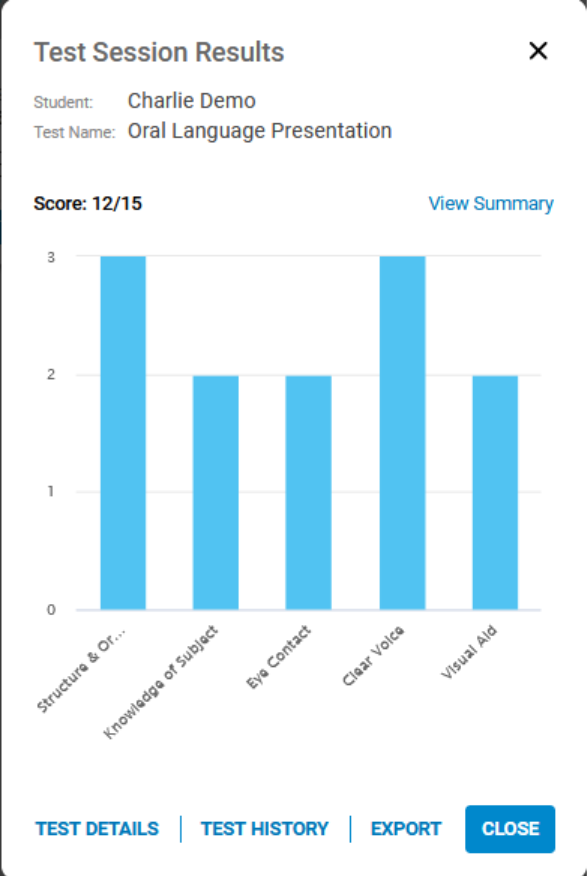
- When completing a rubric assessment for a single student, the Test Session Details modal will be displayed. From this modal, you can see a summary chart of results, view test details by clicking the “Details” dropdown button, and access a variety of resources by clicking to corresponding icons in the lower left corner of the modal.
- When completing a rubric assessment for a class or group, results are displayed in a table format which shows each student’s name aligned to each level and criterion which was recorded for a holistic class view (Image 1).
Image 1