
Overview
District Admins and School Admins can manage other administrators directly from the Data > Admins page in ESGI. From here, you can view every administrator in your district or school (depending on your admin level), add a new one, or request that one be removed.
Adding an administrator is instant and fully self-service: the new admin appears in your list right away, and ESGI automatically sends them a welcome email with first-login instructions. Deleting an administrator works differently. You submit a deletion request from within ESGI, and our Customer Success team completes the removal, typically within about 5 business days.
This feature is available to District Admins and School Admins. District Admins can add or remove District and School Admins across the district; School Admins can add or remove other admins at their own school site only.
📌 Note: If you don’t see the Admins page or the option to add or delete administrators, this feature may have been turned off for your account. Contact ESGI Customer Support to have it re-enabled. However, this feature is automatically enabled for all districts.
Administrator Types
ESGI supports two administrator types which can be created:
|
Type |
Scope / Data Visibility |
Assignment |
|
District Admin |
Visibility into district-level data, including district administrator, school administrator, teacher, and student data across all school sites in the district. |
Not tied to a specific school; applies district-wide. |
|
School Admin |
Visibility into administrator, teacher, and student data related to their school site only. |
Must select a specific School from a dropdown when creating the account. |
Viewing Administrators
- From the left navigation in your Administrator account, go to Data.
- Select Admins from the Data sub-menu.
This displays every administrator in your district or school, along with their First Name, Last Name, Type, Username, Email, and School (when applicable). Like other Data page tables, this list can be sorted, filtered, and searched.
Adding an Administrator
To add a new administrator to your district or school:
- From the Admins list, select the + icon in the top-right corner of the table to open the Add New Admin panel.
- Choose the admin type using the District or School tab at the top of the panel.
- If you selected School, choose the specific school from the School dropdown (required).
- Complete the Admin Information fields:
- Position/Role: Select from the dropdown (e.g., Principal, Instructional Coach).
- Title: Select from the dropdown (e.g., Mr., Mrs., Dr.).
- First Name and Last Name: Required.
- Email: Required.
- Import ID / Export ID: Optional.
- Under Login Credentials, enter a Username (required) – This can be the admin’s email address or a unique username.
- Select ADD in the top-right of the panel.
Image 1: The Add New Admin Panel
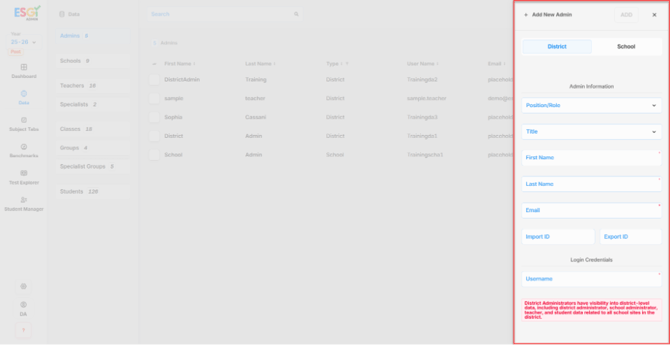
📌 Note: The ADD button stays disabled until all required fields are completed.
Once ADD is selected, the new administrator appears in the Admins list immediately. There’s no approval step or delay. ESGI automatically sends a welcome email to the address entered, welcoming the new admin and explaining how to log in for the first time.
Deleting an Administrator
Unlike adding an admin, deletion isn’t instant and isn’t fully self-service. You submit the request, and ESGI’s Customer Success team completes the removal.
- From Data > Admins, select the row of the administrator you’d like to remove. This opens that admin’s detail panel.
- Select the trash icon at the top of the detail panel, next to the admin’s name and the SAVE button.
- In the Delete Admin? dialog, confirm the admin’s name and review the message explaining that a request will be sent to Customer Support.
- Select DELETE to confirm, or CANCEL to back out.
- After selecting DELETE, a Deletion Requested dialog confirms that your request has been sent to Customer Support and will take approximately 5 business days to process. Select OK to dismiss the dialog.
📌 Note: Until Customer Support completes the request, the administrator will remain visible in your Admins list and the admin count won’t change. The list will update automatically once the deletion is complete. No further action is needed on your part.